
Constant WhatsApp notifications can derail focused work, disrupt rest, and interrupt quiet personal time. If you’ve ever wondered how to put do not disturb on WhatsApp, you’ve likely found the official app’s built-in tools surprisingly limited. Standard WhatsApp do not disturb only lets you mute chats one by one or silence all alerts globally, with almost no room for personalized rules. For anyone who wants granular control over when and how notifications reach them, WhatsApp DND mode in MB WhatsApp delivers a far more flexible solution. This guide breaks down how MB WhatsApp’s enhanced do not disturb feature works, walks you through full setup steps, and explains how it upgrades your notification control compared to the official app.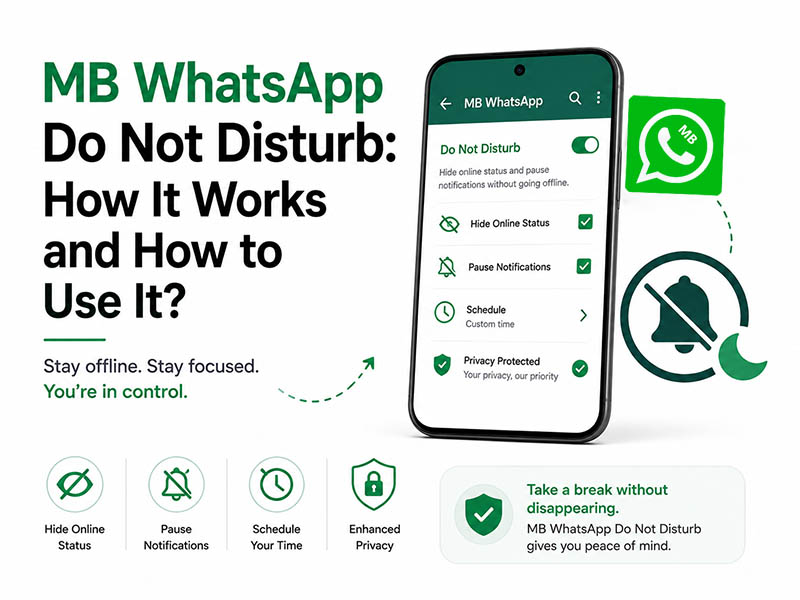
The Limitations of Official WhatsApp Do Not Disturb
Before diving into MB WhatsApp’s tools, it helps to understand the gaps in the official app that push users to seek better options. The default WhatsApp do not disturb functionality is very basic, and it fails to meet most people’s real-world needs:
- It only supports all-or-nothing muting, with no way to silence groups while keeping personal chats active
- There is no built-in scheduler, so you have to manually turn mute on and off every time
- There is no priority contact system, meaning muting chats blocks even urgent messages from important people
- It treats messages and calls the same, with no option to silence texts while keeping call alerts active
- Many users end up hiding their online status to avoid messages, which causes unnecessary confusion with contacts
These limitations make the official solution feel like a temporary fix, not a real way to manage your notification rhythm. This is where MB WhatsApp’s upgraded WhatsApp DND mode stands out.
What Is MB WhatsApp DND Mode
MB WhatsApp’s WhatsApp DND mode is a fully customizable notification management tool that goes far beyond the official app’s basic muting. It lets you fine-tune exactly which WhatsApp notifications come through, when they arrive, and which contacts can bypass do not disturb rules ; all without hiding your online status or blocking incoming messages entirely.
Unlike official WhatsApp do not disturb, which simply silences alerts, MB WhatsApp’s DND system is built to fit your daily routine. Messages and calls still arrive in your chat list normally; you just won’t be interrupted by sounds, vibrations, or pop-up alerts until you choose to open the app. This lets you stay connected on your own terms without falling behind on conversations.
Core Features of MB WhatsApp Do Not Disturb
Every part of the DND system is customizable, so you can build rules that match your work schedule, sleep habits, and social preferences. Key features include:
- Scheduled automatic activation
Set custom time windows for WhatsApp DND mode to turn on and off on its own. For example, you can schedule do not disturb for 10 PM–7 AM daily for uninterrupted sleep, or 9 AM–12 PM on workdays for focused deep work. No manual toggling required.
- Selective chat and group muting
Instead of muting every chat or only one at a time, you can apply WhatsApp do not disturb to entire categories: all group chats, all unknown numbers, or a custom selection of individual contacts.
- Separate controls for messages and calls
You can choose to mute only message notifications while keeping call alerts on, or vice versa. This is perfect for when you want to avoid constant text pings but still need to receive important voice and video calls.
- Visible online status during DND
One of the biggest advantages over official WhatsApp do not disturb is that DND mode never hides your online status. You can stay visibly available to contacts while avoiding notification interruptions.
- Priority contact exception list
Add important contacts to a whitelist. These contacts will still trigger audible WhatsApp notifications even when WhatsApp DND mode is fully active, so you never miss truly urgent messages.
- Built-in auto-reply for DND hours
Optionally set up an automatic reply message that sends to anyone who messages you while do not disturb is on. This is ideal for work hours, letting contacts know you’ll respond later without leaving them waiting for a reply.
Step-by-Step: How to Put Do Not Disturb on WhatsApp
Follow these simple steps to set up and customize your WhatsApp DND mode. The process takes less than two minutes, and you can adjust your rules at any time.
- Update to the latest MB WhatsApp release
For full access to scheduled DND, exception lists, and auto-reply, make sure you’re running the most recent official version. Outdated builds may lack these advanced features.
- Open the DND settings panel
Launch MB WhatsApp, tap the three-dot menu in the top-right corner, and select MB Settings. Scroll down and tap Notifications & DND to open the dedicated do not disturb configuration page.
- Activate core DND functionality
Toggle the main Do Not Disturb switch to ON. This enables the base WhatsApp do not disturb system, and you can then layer on custom rules to fit your needs.
- Set your automatic schedule
Tap Scheduled DND and set your preferred start and end times. You can select which days of the week the schedule applies to, so you can have separate rules for weekdays and weekends.
- Choose what notifications to mute
Under Mute Options, select which WhatsApp notifications to silence:
- All chats and calls
- Group chats only
- Unknown numbers only
- Selected chats only
You can also toggle separate options for message notifications and call notifications.
- Add priority exception contacts
Tap DND Exceptions and select contacts that should bypass do not disturb rules. These contacts will still send audible alerts even when DND is active.
- Set up auto-reply (optional)
Toggle Auto-Reply During DND on, then type your custom message. You can choose to send the auto-reply to all contacts or only to selected people.
- Save and confirm
Tap Save to apply all changes. Your WhatsApp do not disturb setup is now active and will run according to your rules.
Best Practices for Using WhatsApp DND Mode Effectively
To get the most out of WhatsApp do not disturb without missing important updates, follow these simple tips:
- Match your schedule to your routine: Set separate DND rules for work hours, sleep time, and weekend relaxation to minimize interruptions.
- Keep your exception list small: Only add truly urgent contacts to the whitelist to keep DND effective.
- Update rules as needed: Adjust your DND schedule during holidays, busy work periods, or travel to match your current routine.
- Pair with other privacy tools: Combine DND mode with MB WhatsApp’s other privacy features for full control over your WhatsApp notifications and chat visibility.
- Test your settings: Send a test message from another device to confirm your DND rules and exceptions work as expected.
Troubleshooting Common DND Issues
If you run into problems with WhatsApp DND mode, these fixes resolve most common issues:
- DND not activating on schedule: Make sure MB WhatsApp has permission to run in the background on your device. Double-check your time and date settings, and update to the latest app version.
- Exception contacts still muted: Confirm you’ve added the correct contacts to the DND exception list, and that you haven’t muted them separately in individual chat settings.
- Notifications still coming through: Verify that you’ve selected the correct mute categories in DND settings. If you chose “selected chats only,” confirm all chats you want muted are added to the list.
- Auto-reply not sending: Ensure the auto-reply toggle is enabled, and that MB WhatsApp has the necessary permissions to send messages in the background.
Final Thoughts
WhatsApp do not disturb is a simple concept, but the official app’s limited tools leave many users still overwhelmed by constant WhatsApp notifications. MB WhatsApp’s enhanced WhatsApp DND mode solves this by giving you full control over when, how, and from whom you receive alerts.
Whether you want to schedule quiet hours, mute noisy groups while keeping personal chats active, or stay visibly online without interruptions, learning how to put do not disturb on WhatsApp with MB WhatsApp lets you build a notification system that fits your life, not the other way around. For the full set of DND features and the most stable performance, always use the latest official release of MB WhatsApp from a trusted source.


