Are you tired of WhatsApp media cluttering your phone’s gallery or concerned about sensitive photos and videos being accidentally exposed? This comprehensive guide will walk you through MB WhatsApp media visibility settings in 2026, empowering you to take full control of your MB WhatsApp photo gallery and privacy. Whether you’re using Android or MB WhatsApp iOS, we’ll cover everything from basic media visibility option in WhatsApp to advanced MB WhatsApp-specific features, plus a step-by-step MB WhatsApp download guide for iOS users.
What is Media Visibility in WhatsApp?
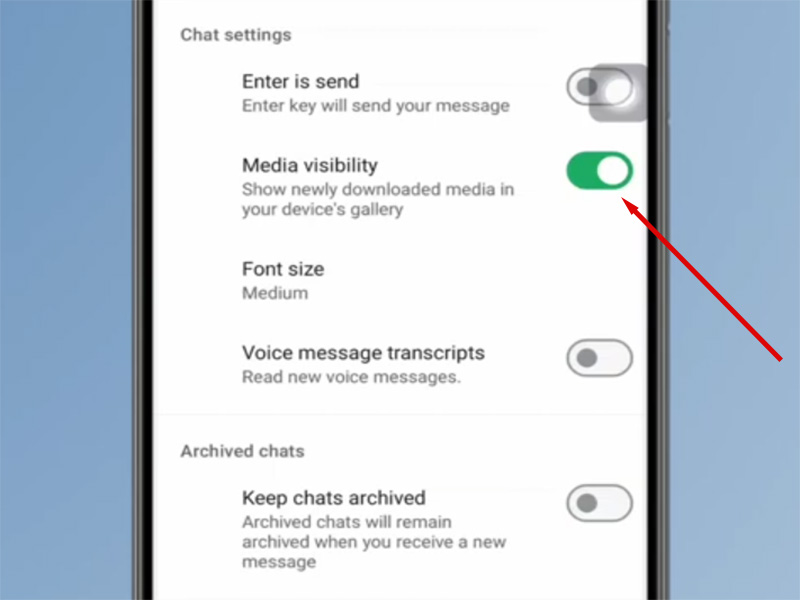
The media visibility option in WhatsApp is a core privacy feature that controls whether downloaded photos, videos, and other media files automatically appear in your device’s gallery. This setting applies to both individual chats and groups, giving you granular control over which conversations can populate your photo library. By default, this feature is enabled, meaning every image or video you receive will show up in your gallery—potentially exposing private content to anyone with access to your device.
MB WhatsApp takes this functionality to the next level with enhanced privacy controls, including universal media hiding options, advanced chat-specific settings, and additional security layers to protect your content.
Why Manage MB WhatsApp Photo Gallery Visibility?
- Privacy Protection: Prevent sensitive media from appearing in your device’s main gallery, especially if you share your phone with others
- Storage Management: Reduce clutter and save space by only keeping necessary media in your gallery
- Organizational Control: Separate personal, work, and group media to maintain a clean gallery structure
- Security Enhancement: Protect confidential content from being accidentally shared or accessed through your gallery apps
MB WhatsApp Media Visibility Settings: Step-by-Step Guide
For Android Users:
- Open MB WhatsApp and tap the three vertical dots in the top-right corner
- Select Settings → Chats
- Locate the Media Visibility toggle
- Toggle off to hide all new media from your gallery, or toggle on to restore default behavior
For MB WhatsApp iOS Users:
- Launch MB WhatsApp and tap the Settings icon in the bottom-right corner
- Go to Chats → Save to Photos
- Toggle off to prevent automatic saving of media to your iOS Photos app
Note: This setting only affects new media downloads not files already saved to your gallery.
Chat-Specific Media Visibility
For more granular control, MB WhatsApp lets you customize media visibility per conversation:
- Open the chat you want to modify
- Tap the contact/group name at the top of the chat window to access Contact Info or Group Info
- Scroll down and select Media Visibility
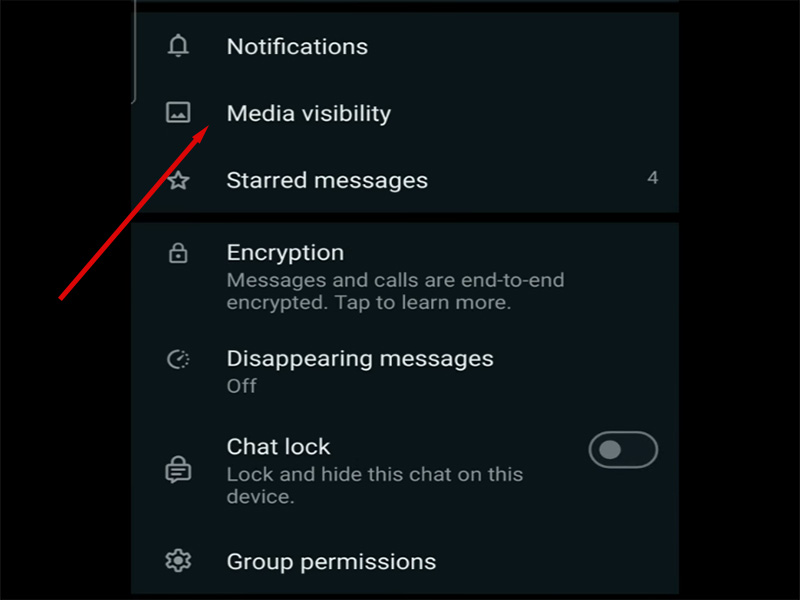
- Choose from three options:
- Default: Follows your universal media visibility setting
- Yes: Show media from this chat in your gallery, overriding universal settings
- No: Hide media from this chat in your gallery, overriding universal settings
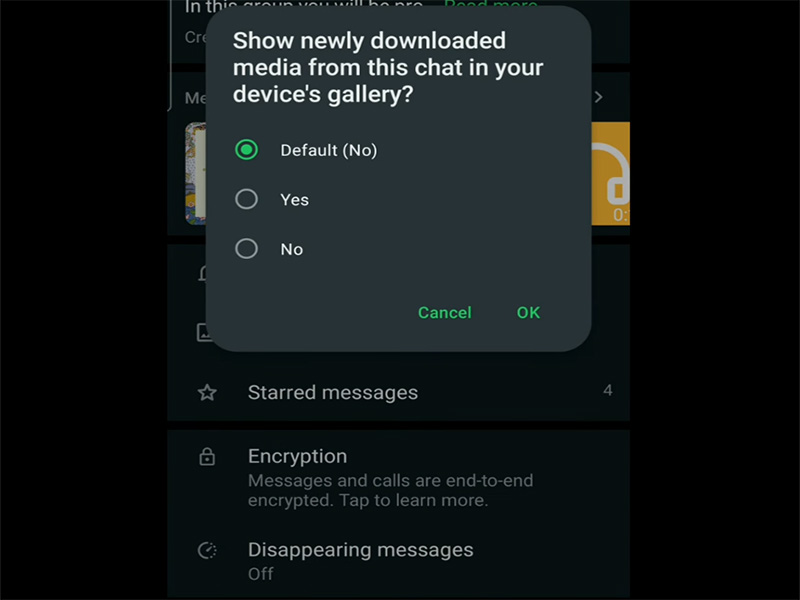
This is particularly useful for sensitive group chats or professional conversations where you don’t want media to appear in your personal gallery.
MB WhatsApp Exclusive Features
MB WhatsApp offers advanced media controls not available in the official app:
- Universal Hide Media: Access via Settings → MB Preferences → Universal → Toggle “Hide Photos, Videos, and GIFs” to completely separate MB WhatsApp media from your device’s gallery
- Private Media Folder: MB WhatsApp creates a hidden, encrypted folder for media files when universal hiding is enabled, accessible only through the app itself
- Auto-Clean Media: Schedule automatic deletion of media files from both MB WhatsApp and your gallery after a set period
MB WhatsApp Download for iOS: 2026 Installation Guide
While MB WhatsApp is primarily designed for Android, iOS users can still enjoy its features through alternative installation methods:
Step 1: Prepare Your Device
- Go to Settings → General → Device Management and ensure you can install apps from external sources
- Disable Low Power Mode and connect to a stable Wi-Fi network
Step 2: Download MB WhatsApp iOS IPA File
- Open Safari and visit a trusted MB WhatsApp iOS download site
- Download the latest MB WhatsApp iOS IPA file
- Verify the file integrity and ensure it’s from an official MB Mods source to avoid security risks
Step 3: Install Using AltStore
- Download and install AltStore on your computer from altstore.io
- Connect your iPhone to your computer and open AltStore
- Click Install AltStore on your device and follow the on-screen instructions
- On your iPhone, open AltStore and tap the + icon to add the MB WhatsApp IPA file
- Trust the developer certificate in Settings → General → Device Management
- Launch MB WhatsApp and complete the setup process
Troubleshooting Common MB WhatsApp Media Visibility Issues
- Media Still Appearing in Gallery After Disabling:
- Ensure you’ve toggled off both universal and chat-specific settings
- Check if other apps are automatically backing up MB WhatsApp folders
- Clear MB WhatsApp cache and restart your device
- Media Not Showing When Enabled:
- Verify the media visibility toggle is turned on in both settings
- Check your device’s storage permissions for MB WhatsApp
- Update MB WhatsApp to the latest version for 2026 compatibility
- iOS Installation Problems:
- Reinstall AltStore and re-trust the developer certificate
- Ensure you’re using the correct IPA file for your iOS version
- Disable any ad-blockers or VPNs that might interfere with the installation process
Final Thoughts
Mastering MB WhatsApp media visibility settings is essential for maintaining privacy, security, and organization in 2026’s digital landscape. By leveraging both universal and chat-specific controls, you can ensure your personal and professional media stays exactly where you want it.
For iOS users, follow our MB WhatsApp download guide to unlock these advanced features. Remember, the media visibility option in WhatsApp is just one part of a comprehensive privacy strategy. Combine it with other MB WhatsApp features like anti-ban protection, message scheduling, and advanced theme customization to create a truly personalized messaging experience.