
Many users like to customize MB WhatsApp to make it look cleaner and more modern. One popular style is the iPhone-style layout. The sleek top bar, rounded design, and simple navigation appeal to many Android users who want a similar look on their devices. For those searching for an mb whatsapp iphone experience, these customization options can help create a smoother and more stylish interface without changing the core messaging features.
In this guide, you will learn how to adjust the top bar of MB WhatsApp to match the look of your iPhone, as well as some tips to improve the overall interface experience.
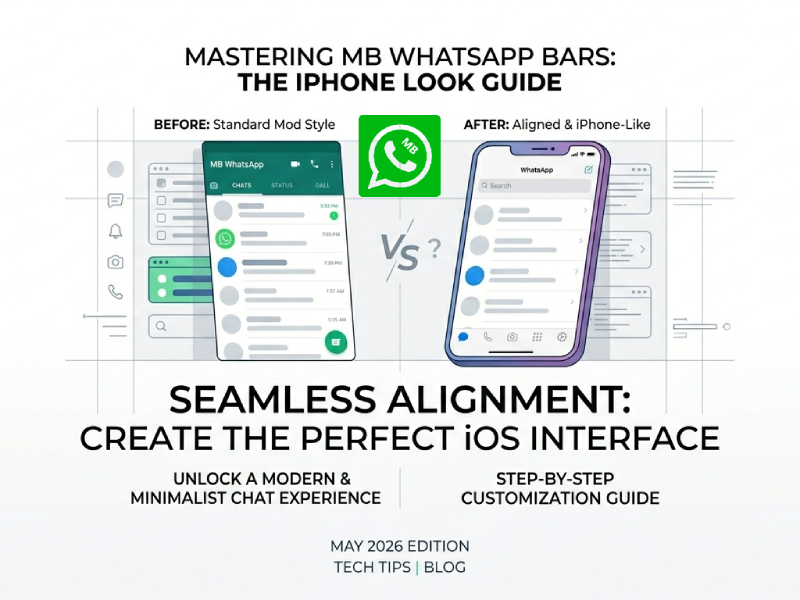
Why Users Like the iPhone Style
Many users prefer the iPhone-style interface because it is simple and clear. The layout is usually more orderly, with balanced spacing, soft colors, and smooth navigation. Compared to interfaces with too many buttons or overly bright elements, iPhone designs tend to be more understated and easier to use. Because of this clean design style, some Android users look for tools like mb whatsapp apk download to customize their messaging app and achieve a similar visual experience with smoother navigation and a more polished appearance.
Another reason is interface consistency. On the iPhone, the layout of menus, icons, and toolbars is very consistent. This makes apps feel more natural in daily use. Users can quickly switch between chat, calls, and settings without feeling that the screen is cluttered.
The rounded corners and soft design also give the interface a more modern feel. Many people appreciate this fluid visual style because it gives apps a lighter, more refined look.
Some users also like the iPhone-style bottom navigation bar. It places the main label near the thumb area, making one-handed operation more comfortable.
In addition, many social media screenshots and videos are shared via iPhone, so some Android users also want a similar interface for a simpler and more stylish chat experience. Because MB WhatsApp supports deep customization, this look can be easily reproduced without changing devices.
Understanding the Main Bars in MB WhatsApp
Before making any design changes, it’s essential to understand the main toolbars within MB WhatsApp. These toolbars control most of the app’s navigation and have a significant impact on the overall look and feel.
Top Bar
The top bar is the first thing users usually notice when opening the app. It normally includes:
- The app title
- Search button
- Menu icon
- Profile or chat information
In many Android design styles, the top bar area may appear larger or more colorful. However, the iPhone’s layout typically maintains a clean and simple top bar. The icons are evenly spaced, and the colors are softer.
Some versions of MB WhatsApp also let users:
- Change the bar height
- Adjust icon size
- Hide certain buttons
- Add transparent effects
These small settings can make the interface look more modern and less crowded.
Bottom Navigation Bar
The bottom navigation bar is another important component of the layout. It allows users to switch more easily between different parts of the application.
Common tabs include:
- Chats
- Calls
- Status
- Groups or Communities
The design of iPhones typically emphasizes smooth navigation and even spacing. Icons are typically smaller and simpler, while labels remain easy to read.
Chat Bar and Input Area
Inside conversations, there is also the message input bar. This section contains:
- Text box
- Emoji button
- Attachment icon
- Voice message button
In layouts similar to those on the iPhone, this area typically features rounded corners and a soft background color. Many users try to emulate this style because it feels more concise and comfortable during long chats.
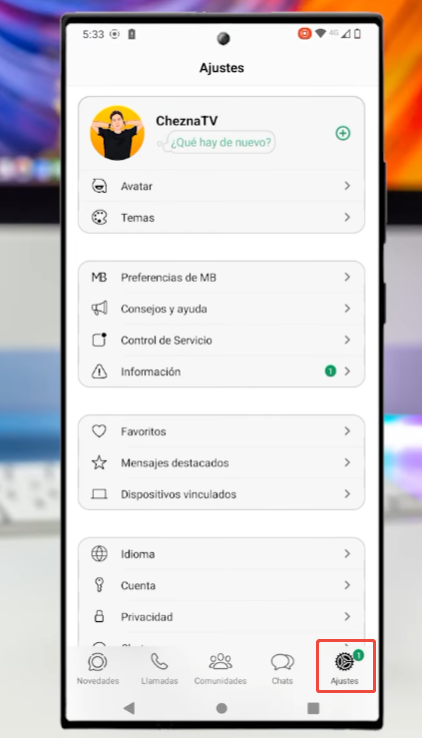
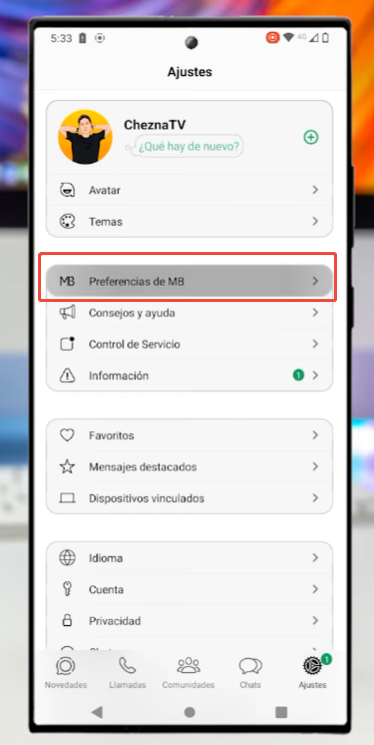
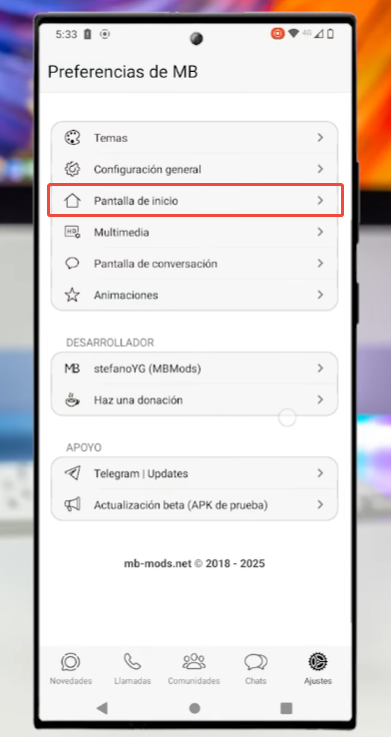
Open the MB WhatsApp Customization Settings
To begin:
- Open MB WhatsApp
- Tap the menu icon
- Go to MB Settings or Themes
- Open the customization section
Different versions may use slightly different names, but most have similar options.
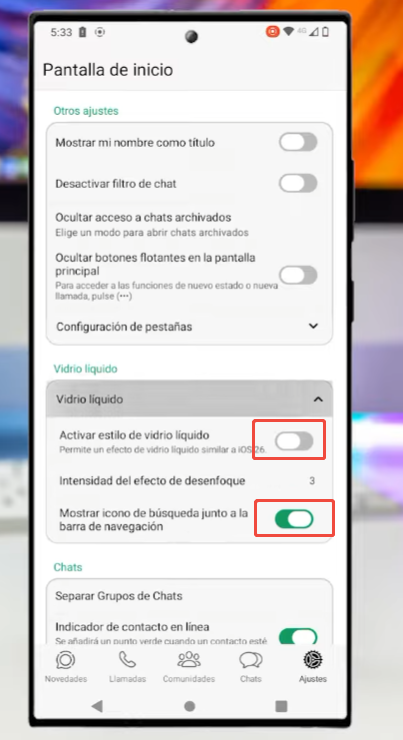
Change the Top Bar Style
To create an iPhone-like appearance:
- Choose a light or simple color
- Reduce strong gradients
- Use rounded corners if available
- Keep icon spacing balanced
Many users prefer white, light gray, or soft blue tones because these colors are similar to the iPhone interface.
You can also:
- Reduce text size slightly
- Use thinner icons
- Hide extra buttons for a cleaner look
Adjust the Bottom Navigation Bar
The bottom bar is one of the biggest parts of the iPhone style.
Try these settings:
- Enable bottom tab navigation
- Use simple icons instead of colorful ones
- Keep the background plain
- Increase spacing between tabs
Some MB WhatsApp themes already include iPhone-style navigation bars, which makes setup easier.
Use an iPhone Theme
Instead of changing every option manually, you can apply a ready-made theme.
Many themes include:
- iPhone-style bars
- Similar fonts
- Matching colors
- Rounded UI elements
After applying a theme, you can still adjust small details to fit your preference.
Match Fonts and Icons
The iPhone look is not only about the bars. Fonts and icons also matter.
For a more realistic appearance:
- Use simple fonts
- Avoid heavy or decorative text styles
- Choose clean line icons
Small changes can make the app feel much closer to the iOS design.
Improve the Overall Layout
To make the interface feel smoother:
- Reduce animation speed if possible
- Use smaller chat bubbles
- Keep wallpaper simple
- Avoid too many bright colors
The goal is a balanced and minimal layout.
Save Your Settings
After finishing your customization:
- Save the theme or settings
- Restart the app if needed
- Check if all bars align properly
Sometimes small adjustments are needed after reopening the app.
Common Problems During Customization
When customizing MB WhatsApp to the iPhone style, some users may encounter some layout or display issues. These problems are common, especially because different Android phones have different screen sizes, system versions, and display settings. In some versions of mb whatsapp 2026, users may notice that the top bar, icons, or chat spacing do not fully match the expected iPhone appearance, but most of these issues can usually be fixed by adjusting theme settings, restarting the app, or updating to the latest customization package.
A common problem is misaligned icons or labels. After applying a theme, the navigation bar icons may appear too dense or unevenly spaced. This usually happens on phones with smaller screens. Adjusting the icon size or changing the navigation layout can usually solve the problem.
Another issue is that the text is displayed too large or too small. Some iPhone-style themes are designed for specific screen settings, so the font size may not fit perfectly on all devices. You can resolve this issue by changing the font scaling in your MB WhatsApp settings or your phone’s display settings.
Some users may also notice that buttons overlap or text is truncated. This can happen when using custom fonts or older themes. Switching back to the default font or updating the theme can usually improve the layout.
In some cases, deep customization can slow down the app. Themes with lots of visual effects or animations can impact performance, especially on lower-spec phones. Using a lighter theme and reducing extra effects can make the application run more smoothly. If your changes are not displaying correctly, restarting MB WhatsApp or clearing temporary cache files may help refresh the interface. Some settings only take full effect after reopening the app.
By making incremental tweaks, most customization issues can be easily resolved, helping you create a cleaner, more balanced iPhone-style layout.
Final Thoughts
The key to customizing MB WhatsApp to match the iPhone’s style is balance and simplicity. With the help of the mb whatsapp mod apk, you can create a cleaner, more modern interface without changing your device by adjusting the top bar, bottom navigation bar, font, and colors while keeping the overall layout smooth and easy to use.
The best results are usually achieved by combining a great theme with some personalized adjustments. Once all settings are right, MB WhatsApp will offer a smoother, simpler user experience, closer to the iPhone instant messaging style that many users love.


