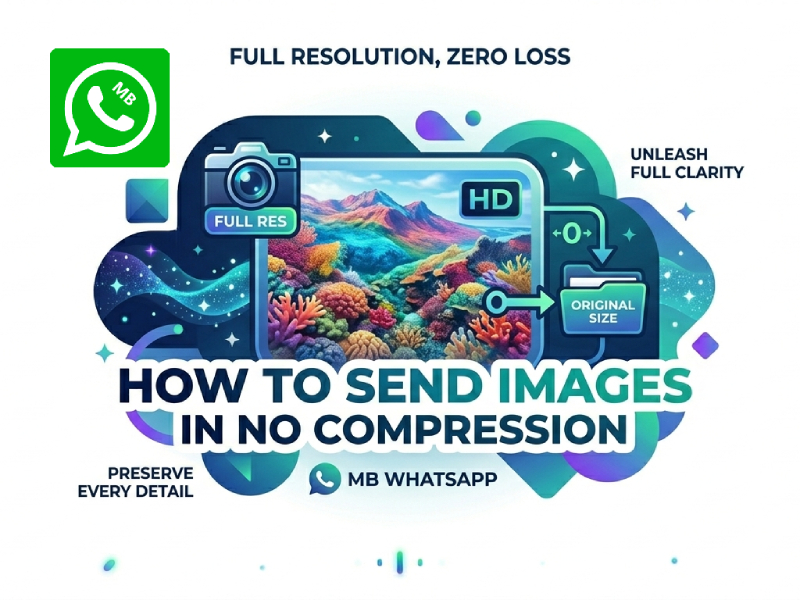
When you send photos via WhatsApp, the app typically compresses them. This means the image size will be smaller, but the image quality will also decrease. For many users, this is irrelevant to everyday chatting. Compression becomes an issue if you’re sharing travel photos, work photos, or anything that requires clear detail. Many users now switch to MB WhatsApp APK latest version because it offers more control over media quality and allows images to be shared with less compression compared to the standard app.
MB WhatsApp is a modified version of WhatsApp that adds some extra features, including better control over media quality. One of the most practical functions is sending uncompressed images.
In this guide, you will learn how image compression works, why it’s done, and how to send full-quality images in a simple and practical way using MB WhatsApp.
Why WhatsApp Compresses Images
When you send a photo on WhatsApp, the app doesn’t keep the original image; instead, it reduces the image size. This process is called compression. This is not a coincidence or a programming error, but a built-in design intended to help applications run smoothly and serve billions of users. Many users who want to keep better image quality often look for modified apps such as the MB WhatsApp anti-ban version, which offers extra media-sharing options compared to the official app.
1. To Make Sending Faster
One of the main reasons for compression is to increase speed. Large image files are uploaded and sent slowly, especially in areas with weak mobile network signals. WhatsApp ensures fast message delivery by reducing file size, even when network connections are unstable.
Without compression, sending multiple high-resolution photos can take a long time, and may even be impossible in areas with slow internet speeds.
2. To Save Mobile Data
Many users still rely on mobile data rather than Wi-Fi. High-quality images can quickly consume a large amount of data.
Compression helps reduce data usage, allowing users to send and receive more photos without worrying too much about data limits. This is especially important in areas where mobile data is expensive or data is limited.
3. To Reduce Storage Usage on Devices
If every image is saved at full resolution, WhatsApp chat history will quickly take up a lot of storage space on your phone. In the long run, this could slow down device performance, especially for low-end models with limited memory.
By compressing images, WhatsApp helps control local storage usage and prevents chat history from consuming too many resources.
4. To Improve App Performance
WhatsApp is designed to run quickly and stably on a variety of devices. Large media files may slow down loading speed, backup speed, and chat synchronization speed.
Compression helps the app:
- Open chats faster
- Load media previews quickly
- Reduce backup size
- Keep overall performance stable
This is important because WhatsApp is used on everything from high-end smartphones to very basic devices.
5. To Support Large-Scale Messaging
WhatsApp processes billions of images every day. Sending each image in its original quality would significantly increase server load and network traffic.
Compression helps reduce the strain on infrastructure, enabling systems to handle massive amounts of communication more easily and preventing delays or crashes.
What Makes MB WhatsApp Different
MB WhatsApp is a modified version of WhatsApp, and the main reason people use it is simple: it offers more control and flexibility than the official app. While the core functions are the same, including sending text, pictures, voice messages, and making calls, the difference lies in its built-in additional features.
In MB WhatsApp, users can change the theme, font, and overall chat appearance, while the official WhatsApp does not allow this. This makes the app more personalized, especially for users who spend a lot of time chatting every day and want to have different visual styles. Many users also search for tips like how to send HD photos on MB WhatsApp so they can improve both the look of the app and the quality of the media they share with friends.
Another key point is media control. In the standard version of WhatsApp, images and videos are automatically compressed. MB WhatsApp usually offers more options, such as sending media files in higher quality or even at the original resolution. This is very useful for users who share photos for work, social media, or personal archive purposes and do not want to lose image quality.
MB WhatsApp also often includes additional privacy features. For example, users can hide their online status, freeze their “last online time,” or read messages without displaying a blue checkmark. These options give you more control over how much information others can see.
In addition, file sharing restrictions are usually higher. Compared to the official app, MB WhatsApp may allow uploading larger videos or documents. This reduces the need to compress or split files before sending.
How to Send Images Without Compression in MB WhatsApp
The exact menu may vary depending on your MB WhatsApp version, but the general steps are similar.
Step 1: Open MB WhatsApp
Launch the app and go to the chat where you want to send the image.
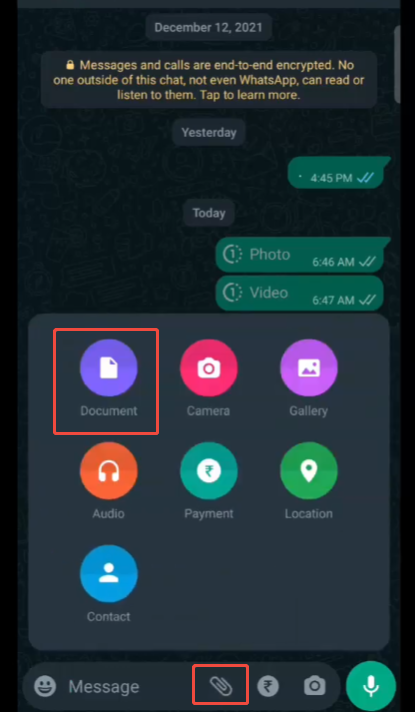
Step 2: Tap the Attachment Icon
Click the paperclip or “+” icon, depending on your interface.
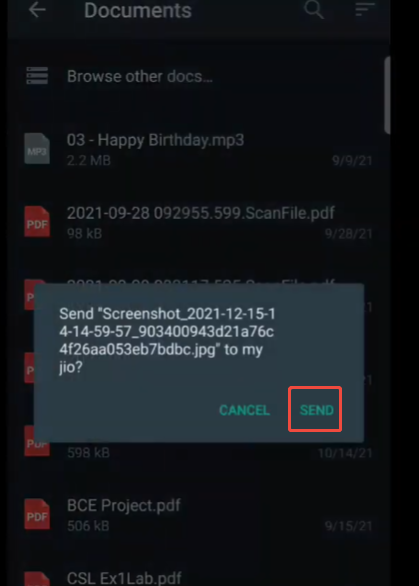
Step 3: Choose the Gallery or File Option
You will usually see two options:
- Gallery
- Document / File
To avoid compression, the key is to use the Document/File option instead of Gallery.
Step 4: Select Your Image
Locate the image to be sent in the storage space. When you select it as a file, MB WhatsApp will treat it as a document instead of an image.
This is important because documents are not compressed.
Step 5: Send the File
Tap send. The image will be delivered in original quality, without compression.
Alternative Method: Disable Compression Settings
Some MB WhatsApp versions include a built-in setting to control image quality.
You can check this by:
- Opening Settings
- Going to “Media Settings” or “Media Quality”
- Looking for options like: Original quality / No compression / High resolution
If you find these options, select the highest quality available.
This method is easier than sending images as documents, but not all versions have it.
Tips for Better Image Quality
Even when sending without compression, a few small things can affect quality.
1. Start with a High-Quality Image
If the original photo is already low quality, sending it without compression will not improve it.
2. Avoid Editing Too Much Before Sending
Some editing apps reduce resolution when exporting. Always check export settings.
3. Use Proper File Formats
JPEG is common, but PNG often keeps sharper details, especially for screenshots or graphics.
4. Watch File Size Limits
Even though MB WhatsApp allows larger files, extremely big images may still take longer to send.
Common Problems and Fixes
Even when sending uncompressed pictures using MB WhatsApp, some minor issues may still occur. Most problems are easy to solve once the cause is found.
1. Image Still Looks Blurry
This usually happens when images are sent in the normal “Gallery” mode instead of the “Document” mode. In this case, WhatsApp may still compress the image.
Fix: Please resend the images using the “Document/File” option. Also, check if the “automatic compression” setting is still enabled.
2. File Won’t Send
Sometimes the image fails to send, especially if the file is large or the connection is weak.
Fix: Try switching to a more stable network. If the image is large, you can reduce the resolution slightly, but avoid excessive compression.
3. Recipient Can’t Open the Image
When images are sent as files, the recipient may not be able to see them in a regular photo library.
Fix: Please ask them to open it through a file manager or the download folder. Most mobile phones can open these files without additional apps.
4. Image Size Too Large
High-quality images can take more time to upload and send.
Fix: Wait for a stable connection or send images one by one instead of in bulk.
5. Settings Not Working Properly
Some versions of MB WhatsApp may not fully apply “no compression” settings.
Fix: Update the app version or rely on the Document/File method, which is more consistent.
FAQs
Does MB WhatsApp really send images without compression?
Yes, in many cases it is possible. The most reliable method is to send the image as a document, rather than a regular photo gallery picture. This helps maintain the original quality and resolution of the image.
Is there a file size limit for images in MB WhatsApp?
Yes. While MB WhatsApp generally allows uploading larger files than the official WhatsApp, there are still limitations, depending on the app version and device storage space. Very large images may take longer to upload, or may fail to upload if the network connection is unstable.
Can I send multiple images without compression at once?
Yes, but it depends on the WhatsApp MB version you are using. Some versions support sending documents in batches, while others require sending files one by one.
Is sending images as documents safe?
Generally speaking, yes. This is a common method used by many WhatsApp users to maintain video quality. The recipient only needs to download the file normally.
Which image format works best for no-compression sending?
JPEG files are small, making them ideal for regular photos. The PNG format is better suited for screenshots, graphics, or images containing text because it retains clearer details.
Does official WhatsApp support no-compression image sending?
The official WhatsApp now supports sharing high-resolution images, but some compression may still exist. Sending images as documents remains the best way to maintain full image quality.
Can MB WhatsApp improve low-quality photos?
No. If the original image is blurry or has low resolution, MB WhatsApp cannot recover the lost details. It can only help reduce the extra compression during the transmission process.
Will using MB WhatsApp increase the risk of account bans?
Using modified versions of WhatsApp always carries some risk, as they are not the official app. Users should be aware of this before installing or using the modified version of WhatsApp.
Final Thoughts
Sending uncompressed images is very useful when image quality is important. MB WhatsApp gives users more control over how media files are sent.
The simplest method is still the most reliable: send the image as a document instead of a regular photo. In daily MB WhatsApp media sharing, this method helps keep the original image quality untouched, so the recipient receives the exact file without compression or loss of detail.
If you frequently share detailed photos related to work, travel, or design, this small change can significantly improve how well the photos appear to the recipient.