
How do send a PDF in WhatsApp? That’s not difficult. But what about on different devices?
This complete guide covers every method, common problems, and helpful tips for faster file sharing. Learn how to share PDF files on Android, iPhone, Windows, Mac, and MB WhatsApp.
How to Send a PDF in WhatsApp on Android
Android users have several ways to send PDF documents. The fastest method is directly from a chat.
Method 1: Send from WhatsApp
- Open WhatsApp.
- Open the chat where you want to send the PDF.
- Tap the paperclip icon at the bottom‑right.
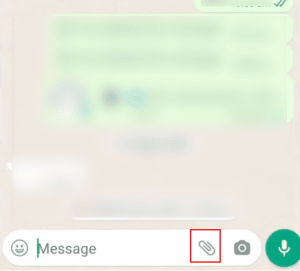
- Select Document.
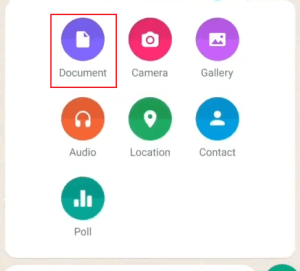
- Browse your phone storage.
- Choose your PDF file.
- Tap Send.
That’s all.
The recipient can download and open the PDF immediately.
Method 2: Share from Anywhere
- Find the PDF in your file manager, Google Drive, or email attachment.
- Find your PDF.
- Long-press the file.
- Tap Share.
- Choose WhatsApp.
- Select the contact.
- Tap Send.
This second method works on almost every Android phone and saves you a couple of taps.
How to Share PDF on WhatsApp on iPhone
The process is slightly different on iPhone because documents are managed through the Files app.
- Open WhatsApp.
- Enter a conversation.
- Tap the + button.
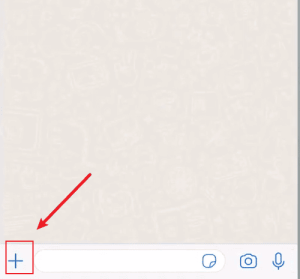
- Select Document from the pop‑up menu.
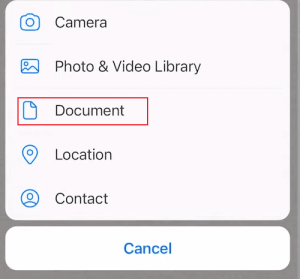
- Your Files app opens.
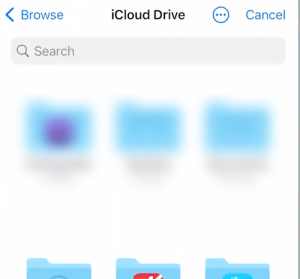
- Select your PDF.
- Tap Open.
- Tap Send.
Pro tip: If you’re already viewing the PDF in another app like Mail, Safari, or Google Drive, tap the Share icon and choose WhatsApp. Pick the chat, then send. That’s often faster than going through the + menu.
How to Send PDF File from Laptop to Mobile WhatsApp
Many people work on a computer but need to send documents through WhatsApp. There are several easy methods.
Method 1: WhatsApp Web
- Go to web.whatsapp.com on your laptop browser, or open the WhatsApp Desktop app.
- Link your phone: open WhatsApp on your phone > Settings > Linked Devices > Link a Device > scan the QR code shown on your laptop screen.
- Once connected, open a chat — either with yourself
- Click the paperclip / + icon near the message box > Document > browse your laptop’s files > select the PDF > Send.
Even easier: Drag and drop the PDF file directly into the chat window on web or desktop. It will upload and send automatically.
Method 2: Upload to Cloud Storage First
If your computer and phone aren’t connected, cloud storage is another option.
Upload your PDF to: Google Drive, OneDrive, Dropbox or iCloud Drive. Then open the cloud app on your phone and share the PDF through WhatsApp.
This method is especially useful for very large work files.
How to Send Document in PDF Format in WhatsApp
Sometimes you haven’t created a PDF yet. Instead, you have a Word document, Excel spreadsheet, or PowerPoint presentation. Before sending, convert it into a PDF.
Microsoft Word
- Open the document.
- Choose: File > Save As > PDF
- Save it.
Then send it through WhatsApp as a document.
Google Docs
- Open your document.
- Select: File > Download > PDF
- The PDF downloads automatically.
Now share it through WhatsApp.
Apple Pages
- Open the document.
- Tap: Export > PDF
- Save the file.
- Open WhatsApp and send it normally.
MB WhatsApp and PDF Sharing
Some users prefer MB WhatsApp, a modified version of WhatsApp that focuses on interface customization and additional features.
When it comes to sending PDF files, the basic process is almost identical to the official app
But MB WhatsApp offers features such as enhanced customization, additional privacy controls, and different interface styles. If you want to personalize your WhatsApp interface, you can download the MB WhatsApp app.
Common Pitfalls and How to Avoid Them
- Can’t find the Document option? Make sure you’re tapping the correct icon. On iOS it’s “+”; on Android, it’s the paperclip. If you see only Camera/Gallery, scroll sideways — Document is often hidden behind a “More” button.
- PDF sends as a photo? That happens when you accidentally pick it from Gallery instead of Document. Delete the message and resend using the Document option.
- File too large? WhatsApp now allows up to 2GB per file. If your PDF exceeds that, compress it using a free tool like Smallpdf or Ilovepdf, or upload it to Google Drive and share the link.
- Can’t the recipient open the PDF? Ask them to install a PDF reader. Also check if the file is corrupted by opening it yourself first.


