
MB WhatsApp gives users greater control over how WhatsApp media files are handled on their phones, making it easy to hide WhatsApp photos from gallery when storage or privacy becomes a concern. If you are active in multiple groups or receive a large number of photos and videos every day, your phone’s photo album will soon be filled with WhatsApp pictures, emojis, screenshots, stickers, and short videos.
For many users, the problem isn’t storage space, but how to organize it. You might want to keep your media files in MB WhatsApp while preventing them from appearing in your regular photo album. This keeps your album tidy and makes it easier to find personal photos.
Fortunately, MB WhatsApp offers media file visibility options that can help you achieve this. The menu names may vary slightly depending on your version, but the basic workflow is similar.
In the previous guide, we explained whether international calls are free on WhatsApp. This guide will explain how to hide MB WhatsApp media files from your Photos app, how Android handles WhatsApp media files, and what to do if the images still show up after you change the settings.
Why Hide MB WhatsApp Media from Your Gallery
Before changing any settings, it helps to understand why this feature can be useful.
1. Keep your gallery organized
WhatsApp groups can send a large number of pictures and videos. An active group can add dozens of files to your gallery in a single day. Hiding these files allows your main gallery to focus on the photos you actually want to see.
2. Avoid unwanted photos in your camera feed
If MB WhatsApp automatically saves received images, they may appear next to photos taken with your phone. This might make it harder for you to find recent photos.
3. Separate chats from personal media
Some users prefer to keep their chat media content within WhatsApp rather than mixing it with photos from other apps. Disabling gallery visibility can easily distinguish between these two types of content.
4. Reduce gallery clutter
Emojis, stickers, forwarded images, GIFs, and group photos can quickly make your photo album difficult to manage. Turning off media visibility is a simple way to reduce this clutter.
How to Hide Images in Gallery
The first method is to change the general media visibility settings in MB WhatsApp. This setting controls whether newly downloaded WhatsApp photos and videos appear in your phone’s gallery.
Follow these steps:
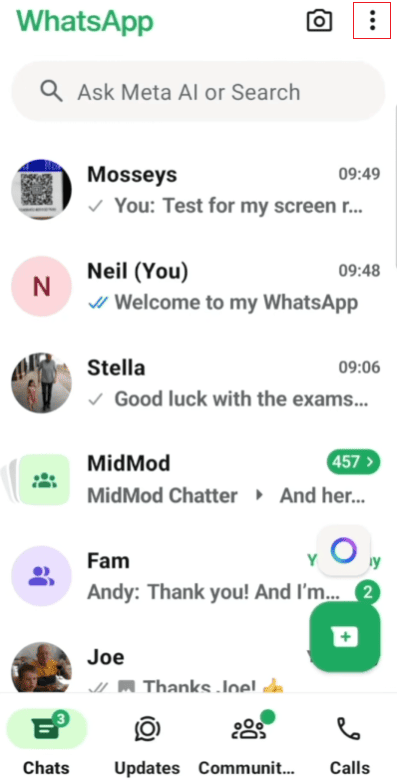
- Open MB WhatsApp on your Android phone.
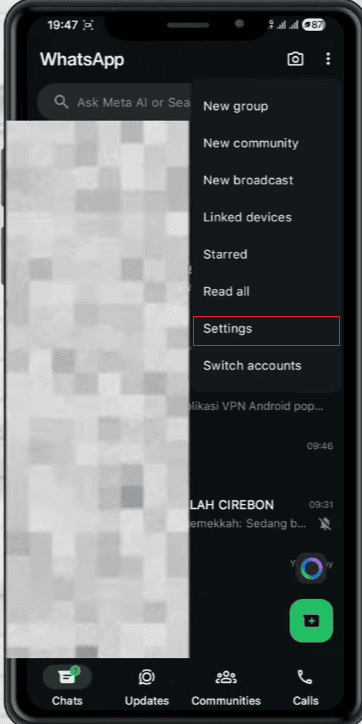
- Tap the three-dot menu in the upper-right corner.
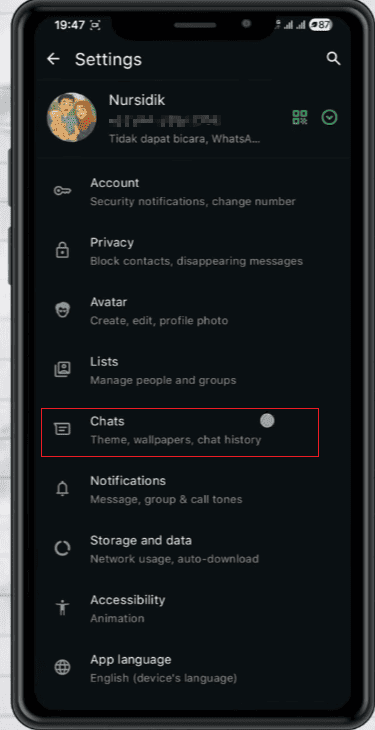
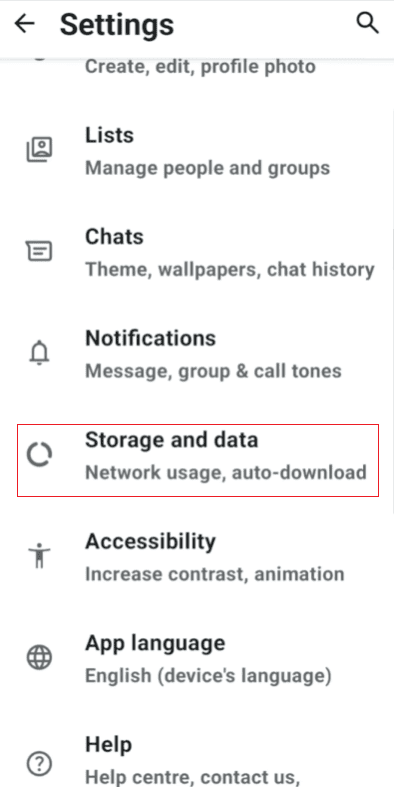
- Open Settings.
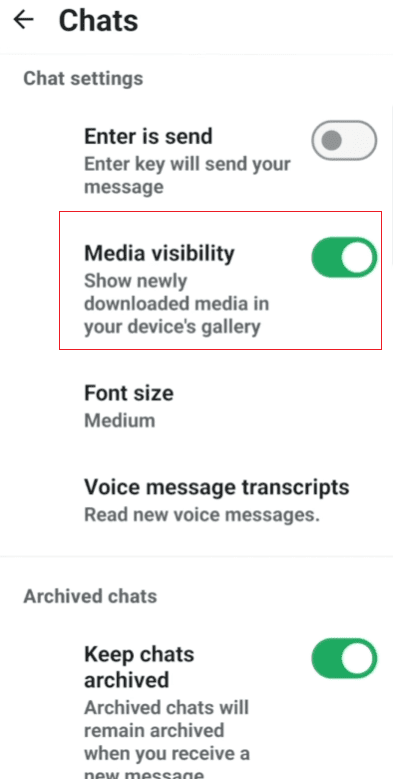
- Select Chats.
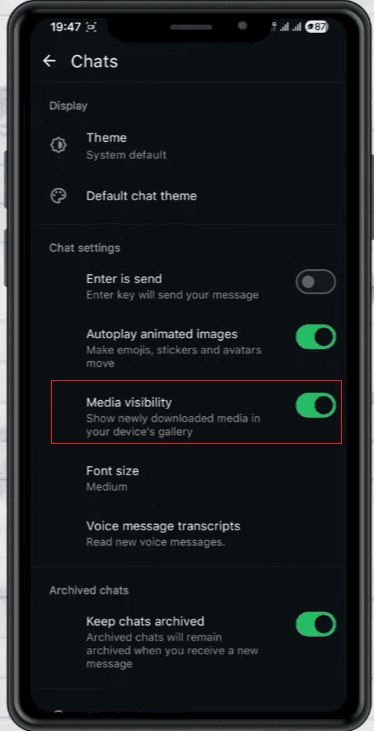
- Look for Media visibility.
- Turn the option off.
- Return to your chats.
After changing this setting, newly downloaded media files will no longer appear in your main gallery.
Please note that this setting typically only affects newly downloaded media files. Existing images and videos in the gallery may still be retained. If this happens, you may need to delete or move these existing files individually.
In addition, this setting usually does not delete media files from your phone. These documents may still remain in the relevant WhatsApp conversations.
How to Hide Photos from Gallery in Android
Android provides another way to control how the media folder is displayed in the Gallery app.
If you want to know how to hide photos in your gallery on Android, a common method is to use a .nomedia file. Android gallery apps typically use this file to identify which folders should not be scanned for media files.
However, this method is more complicated than simply turning off media visibility in MB WhatsApp.
A typical process looks like this:
- Open your Android file manager.
- Find the folder where MB WhatsApp stores its media.
- Open the folder that contains the images or videos.
- Create an empty file named .nomedia.
- Save the file in the folder.
- Restart or refresh your gallery app if necessary.
The exact folder location depends on your Android version and MB WhatsApp setup. Newer Android versions may place WhatsApp-related files under the Android/media directory instead of the older WhatsApp folder structure.
In addition, some file managers hide files that start with a dot. If you don’t see the .nomedia file after creating it, please check if your file manager has an option like “show hidden files”.
For most users, the built-in media file visibility settings are more convenient because they eliminate the need for manual folder management.
Hide Media from a Specific MB WhatsApp Chat
You may not want to hide all WhatsApp media files. For example, you might have an active group that sends hundreds of pictures every day, and you still want photos from your family chats to appear in your photo album.
In this case, please check if your MB WhatsApp version offers media file visibility settings for individual chats.
Try the following:
- Open the chat or group.
- Tap the contact or group name at the top.
- Find Media visibility.
- Choose No or the equivalent option.
- Confirm the change if MB WhatsApp asks you to do so.
This gives you more control than changing global settings.
For example, you can make media content visible in private conversations while hiding it in large group chats. This will be very useful if you receive a lot of forwarded content.
How to Stop WhatsApp Media from Appearing Automatically
Hide media files from the gallery and stop media file downloads.
For example, you may still receive pictures in the group, but they don’t necessarily need to be automatically downloaded to your phone.
In your MB WhatsApp version, please go to Settings > Storage and Data, and find the “Automatic Media Download” option.
You can control when different types of files are downloaded, such as:
- Photos
- Videos
- Audio
- Documents
You can choose to download media files only when connected to Wi-Fi, only when using mobile data, or not to download automatically, depending on the available options.
This feature can be used in conjunction with gallery visibility settings. The former controls whether files are downloaded, while the latter controls whether downloaded media files are displayed in your gallery.
If Hidden Images Still Appear in Your Gallery
Sometimes users can still see WhatsApp images even after they have turned off media visibility. This could be due to several reasons:
First, check if the image was downloaded before the settings were changed. Older documents may still be indexed.
Second, check if the images came from other apps. For example, a picture shared via WhatsApp may have been saved to your phone by other apps.
Third, check your gallery settings. Some gallery apps offer separate controls to hide or show specific folders.
You can also view the file location. If the images are not stored in the WhatsApp media folder, changing the WhatsApp media visibility settings may not have an effect.
How to Keep Your Gallery Clean
Hiding WhatsApp media files is just one part of organizing your photo album. Some simple habits can bring about big changes.
Review large groups: If the group sends a large number of pictures and videos, consider turning off the automatic download function.
Delete old forwarded media: Old emojis and forwarded videos take up space and may become useless in the future.
Move important photos: Save the images you want to keep to a dedicated image folder.
Check downloads regularly: Images downloaded from browsers, social apps, and instant messaging apps can also populate your gallery.
Use albums: Store work photos, travel photos, screenshots, downloaded photos, and personal photos in separate albums.
Can You Still View Hidden Media in MB WhatsApp
Yes. Hiding media files from your gallery does not mean that these media files will automatically disappear from your WhatsApp conversations.
If the files are still stored on your phone and MB WhatsApp has access to them, you can usually open the relevant chat history and view the pictures or videos.
This makes the feature very useful for users who want to access chat media files but don’t want those files mixed in with their regular photo library.
Conclusions
Removing MB WhatsApp media files from your gallery is primarily for better file organization. The easiest way is to go to “Settings” > “Chat” > “Media Visibility” and turn it off if your version supports this option.
If you are looking for how to hide images in gallery Android setups and only want to hide media files in specific conversations, check the media settings for each conversation. For more advanced Android control, you can use a .nomedia file to prevent many gallery apps from recognizing a particular folder.
Keep in mind that these settings usually affect how media files are displayed, not whether they are permanently deleted. Therefore, you can continue using the images and videos from the conversation while keeping your main gallery tidy.


