
WhatsApp’s privacy settings allow users to control who can see their profile picture, last online time, online status, status updates, and other personal information. These privacy of WhatsApp options help users manage their visibility, but some users may still encounter issues with WhatsApp failing to save or update these settings.
There are many reasons for this error, such as network problems, outdated application version, temporary errors, account synchronization issues, or incorrect application settings. If your privacy changes are not working, you can try the following methods to check and resolve the issue.
In previous articles, we explained how to hide blue ticks on MB WhatsApp. This guide explains common reasons why WhatsApp privacy settings fail to update and provides practical solutions to help you restore normal settings.
Why WhatsApp Privacy Settings Fail to Update
Before addressing the issue, it’s helpful to understand why WhatsApp fails to save privacy changes. In most cases, the problem is related to application connectivity, device settings, or temporary system errors.
1. Poor Internet Connection
WhatsApp requires an internet connection to sync account changes to its servers. If your internet connection is unstable, your privacy settings may not update correctly.
For example, you might change your profile visibility from “Everyone” to “My Contacts,” but WhatsApp might still show the old settings because the update hasn’t been completed yet.
Try switching between Wi-Fi and mobile data to check if the problem is caused by the network.
2. Outdated WhatsApp Version
Using older versions of WhatsApp Mod APK may cause issues with certain features, including privacy settings. App updates typically fix bugs and make improvements, ensuring settings work correctly.
If your WhatsApp version is too old, the privacy menu may not work properly, or changes may not be saved.
Updating WhatsApp to the latest version usually solves these problems.
3. Temporary WhatsApp App Error
Like other mobile apps, WhatsApp sometimes experiences temporary outages. Some minor software errors can prevent the app from performing certain functions. In some cases, users may also think the problem is related to a privacy setting whatsapp option, when it is actually caused by a temporary app or server issue.
In this situation, the privacy settings page may open normally, but the changes made after saving will not take effect.
Restarting the app or your phone can refresh the system and fix temporary issues.
4. Cache Problems on Android Devices
Android devices store temporary app files to improve loading speed. However, outdated or corrupted cache files can sometimes affect the operation of applications.
If WhatsApp cache data expires, some settings may not function correctly.
Clearing the cache can refresh WhatsApp without changing your account information.
5. Background Data Restrictions
WhatsApp needs access to backend data to keep account information synchronized. If your phone has background activity blocked, some changes may not update immediately.
Power-saving mode, data throttling, or system optimization features may affect WhatsApp’s performance.
How to Fix WhatsApp Privacy Settings Not Updating
Follow these methods one by one to find the solution that works for your device.
1. Check Your Internet Connection
The first step is to make sure your internet connection works properly.
You can try:
- Opening another website or app to test your connection
- Switching from Wi-Fi to mobile data
- Restarting your router
- Turning airplane mode on and off
After reconnecting, open WhatsApp and try changing the privacy settings again.
A stable connection helps WhatsApp communicate with its servers and save your changes.
2. Restart WhatsApp
A simple app restart can fix many temporary issues.
Follow these steps:
- Close WhatsApp completely.
- Remove it from the recent apps list.
- Wait a few seconds.
- Open WhatsApp again.
- Go to Settings > Privacy and update your options.
Restarting forces WhatsApp to reload its settings and connection.
3. Restart Your Phone
If restarting the app does not work, restart your device.
A phone restart can refresh:
- Network connections
- Background processes
- App memory
- System services
After your phone turns on again, check whether WhatsApp can save privacy changes normally.
4. Update WhatsApp to the Latest Version
An outdated WhatsApp app may have compatibility problems with newer privacy features.
To update WhatsApp:
Android:
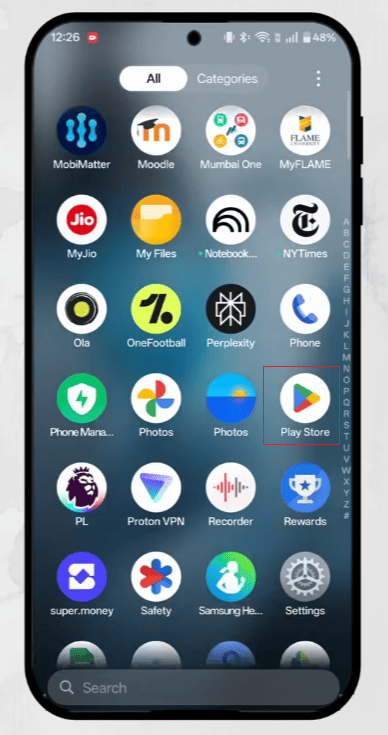
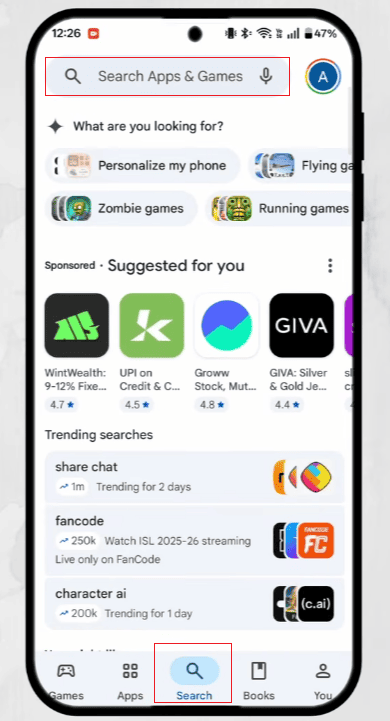
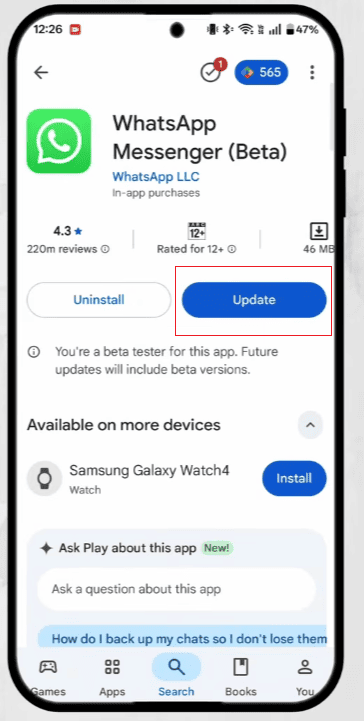
- Open Google Play Store.
- Search for WhatsApp.
- Tap Update if an update is available.
iPhone:
- Open the App Store.
- Tap your profile icon.
- Check available updates.
- Update WhatsApp.
After updating, open the app and try changing the privacy settings again.
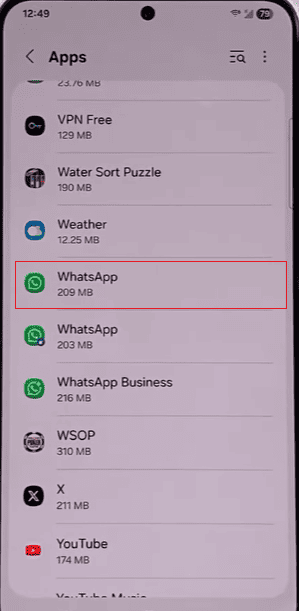
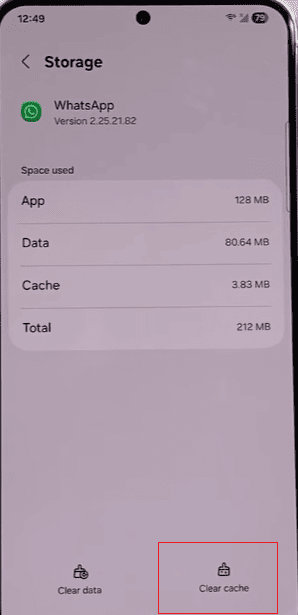
5. Clear WhatsApp Cache on Android
If you use Android, clearing the cache may solve privacy setting problems.
Steps:
- Open Settings on your phone.
- Go to Apps.
- Select WhatsApp.
- Tap Storage.
- Choose Clear Cache.
The cache will be refreshed, and WhatsApp will create a new temporary file.
Please note that the location of these options may vary depending on your Android phone model.
6. Check Phone Data Settings
Your phone may limit WhatsApp from using data in the background.
Check these settings:
- Allow WhatsApp to use mobile data
- Enable background data usage
- Disable battery restrictions for WhatsApp
- Make sure data-saving modes are not blocking the app
After changing these options, reopen WhatsApp and test the privacy settings.
7. Check WhatsApp Privacy Settings Again
Sometimes users may mistakenly believe that the setup has failed because the results are not immediately apparent.
After changing privacy settings, please carefully review the selected options.
WhatsApp privacy options include:
| Setting | Available Options |
| Last Seen and Online | Everyone, My Contacts, My Contacts Except, Nobody |
| Profile Photo | Everyone, My Contacts, My Contacts Except, Nobody |
| About | Everyone, My Contacts, My Contacts Except, Nobody |
| Status | My Contacts, My Contacts Except, Only Share With |
Make sure you selected the option you actually want before leaving the page.
8. Log Out of Linked Devices
WhatsApp allows users to connect multiple devices through linked devices. Sometimes, account synchronization between devices may cause update delays.
To check linked devices:
- Open WhatsApp.
- Go to Settings.
- Select Linked Devices.
- Review connected devices.
If you no longer use a device, removing it may help refresh account synchronization.
9. Reinstall WhatsApp
If none of the above methods work, reinstalling WhatsApp can refresh the application installation.
Before reinstalling:
- Make sure your chats are backed up.
- Remove WhatsApp from your device.
- Install WhatsApp again.
- Log in with your phone number.
- Restore your backup if needed.
A fresh installation can fix problems caused by damaged app files.
Common WhatsApp Privacy Setting Problems
Besides the inability to update settings, users may also encounter other privacy-related issues.
1. Privacy Settings Keep Changing Back
If your privacy settings return to previous options, possible reasons include:
- The update was not saved correctly
- The app did not sync properly
- Multiple devices have different states
Try changing the setting again after reconnecting your account.
2. New Privacy Settings Do Not Appear
WhatsApp sometimes releases new features in phases. Some accounts may receive new features later than others.
Updating the app and waiting a moment before checking again might help.
3. Contacts Cannot See Your Updated Information
After you change your privacy settings, some contacts’ information may not be updated immediately.
You can check:
- Whether the contact is included in your privacy selection
- Whether your phone contacts are synced correctly
- Whether WhatsApp has permission to access contacts
How to Prevent WhatsApp Privacy Setting Problems
Keeping WhatsApp working smoothly can reduce future setting problems.
1. Keep WhatsApp Updated
Regular updates improve app stability and fix known problems.
2. Maintain a Stable Internet Connection
Privacy changes depend on proper synchronization, so a reliable connection helps settings update faster.
3. Review App Permissions
Make sure WhatsApp has the permissions it needs, especially network and contact access.
4. Avoid Using Multiple Old Devices
Too many connected devices may create synchronization delays. Remove devices you no longer use.
Frequently Asked Questions
1. Why can’t I change my WhatsApp privacy settings?
This problem may be caused by an unstable network connection, an outdated WhatsApp version, an application error, a caching issue, or device limitations. It is also worth reviewing your whatsapp chat privacy settings, as certain options may affect how chats work. Checking these aspects often helps in solving problems.
2. How long does it take for WhatsApp privacy settings to update?
Normally, changes will take effect immediately after saving. However, connectivity issues or synchronization delays may extend update times.
3. Will reinstalling WhatsApp delete my privacy settings?
Reinstalling WhatsApp may refresh the app, but your account settings will be restored after you sign in again. Creating a backup before reinstalling helps preserve your chat data.
4. Can I change WhatsApp privacy settings from another device?
WhatsApp’s privacy settings are managed through the main account. You can view linked devices, but privacy settings are usually changed in the WhatsApp app settings.
Final Thoughts
When whatsapp setting privacy options fail to update, it is usually related to network connection problems, an outdated app version, a temporary malfunction, or device settings. Some simple solutions, such as checking your network connection, restarting WhatsApp, updating the app, clearing the cache, and checking permissions, can usually solve most problems.
Keeping WhatsApp up-to-date and maintaining the correct app settings helps ensure your privacy preferences work correctly every time.


