
Privacy is one of the main reasons why many people choose MB WhatsApp. While the official WhatsApp app offers some privacy controls, MB WhatsApp includes more features that allow users to customize how their app displays. One of the most popular features is the ability to hide the blue checkmark. This setting gives users more control over message visibility, as the double check mark whatsapp indicator can reveal when a message has been delivered or read, making private conversations feel more flexible and less intrusive.
A blue checkmark indicates a read receipt, meaning you have opened and read the sender’s message. While this feature is useful, many users prefer to protect their reading privacy. If you’re using MB WhatsApp and want to hide the blue checkmark, we have shared the ways to hide status from specific contacts only before. This guide explains how the feature works and how to customize it.
What Are Blue Ticks
The blue checkmark is a feature in WhatsApp and many other instant messaging apps used to indicate whether a recipient has read a message. It is part of the message status system, which helps users track the progress of a conversation. Along with the familiar single and double tick in WhatsApp indicators, the blue checkmark provides a clear signal that a message has been opened and viewed, making communication more transparent and helping users understand the current status of their chats.
When sending a message, a gray checkmark usually indicates that the message has been successfully sent from your device. Two gray checkmarks indicate that the message has been delivered to the recipient’s mobile phone. Once the recipient opens the chat and reads the message, the two gray checkmarks will turn into blue checkmarks.
This feature is designed to increase the transparency of communication. It can help senders know whether a message has been viewed and reduce uncertainty while waiting for a reply. For example, if you send an important message, a blue checkmark confirms that the recipient has viewed it.
Understanding how the blue checkmark works is the first step in managing privacy settings and customizing your messaging experience to your liking.
Why Do People Hide Blue Ticks
Many users choose to hide read receipts because they want a more flexible way of communicating. While read receipts are useful, they also make it easy for others to know when a message has been viewed. Therefore, some people feel that read receipts create unnecessary expectations and pressure.
1. More Privacy
Privacy is one of the main reasons why people disable the blue checkmark. Not everyone wants their contacts to know when they’ve read a message. By hiding read receipts, users can view messages at their convenience without having to share their activities with others.
2. Less Pressure to Reply
In today’s fast-paced instant messaging environment, many people expect quick replies. When a blue checkmark appears, the sender may assume that the recipient will reply immediately. Hiding the blue checkmark allows users to read the message, think about their reply, and respond when they are ready, rather than feeling rushed.
3. Better Work-Life Balance
Many people check messages during work, study, or personal time. If a contact sees that a message has been read, they may expect a prompt reply. Disabling the blue checkmarks helps users separate communication from other tasks and reduces distractions throughout the day.
4. More Control Over Conversations
Not every message needs an immediate reply. Some conversations involve planning, decision-making, or in-depth discussions that require time. Hiding the blue checkmark gives users more control over when and how to engage in a conversation, allowing them to respond thoughtfully rather than hastily.
5. Reduced Social Pressure
Read receipts can sometimes cause awkwardness in group chats and private conversations. Friends, family, or colleagues may wonder why the message has been read but not replied to. By hiding the blue checkmark, users can avoid these guesses and communicate at a pace that feels comfortable to them.
How to Hide Blue Ticks on MB WhatsApp
The process is simple and usually takes less than a minute.
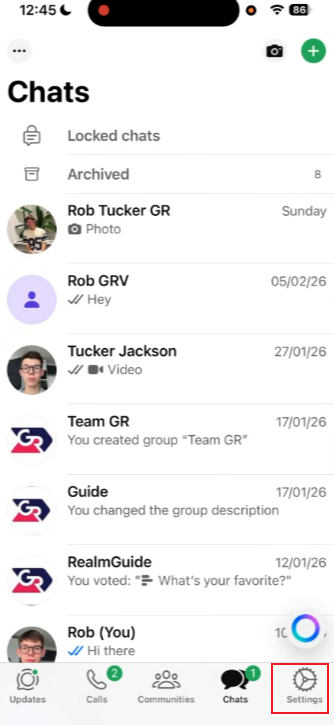
Step 1: Open MB WhatsApp
Launch MB WhatsApp on your device and wait for the main chat screen to load.
Step 2: Access MB Settings
Tap the menu icon located in the upper corner of the app. From the menu, select MB Settings.
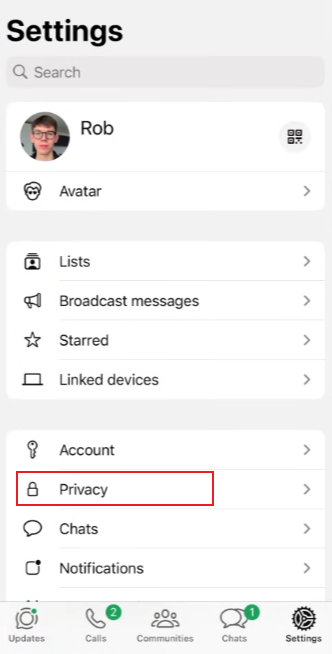
Step 3: Open Privacy Options
Inside MB Settings, find and open the Privacy section. This area contains various visibility controls.
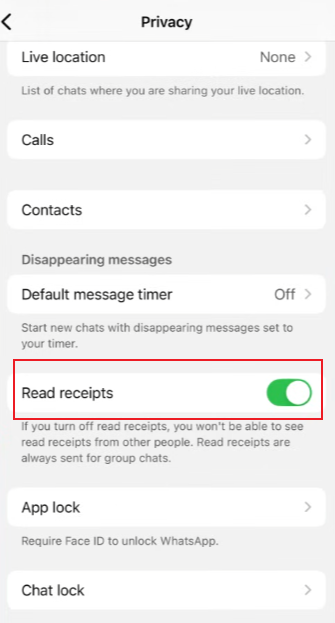
Step 4: Locate Read Receipt Settings
Look for options related to:
- Blue Ticks
- Read Receipts
- Privacy Controls
The exact wording may vary depending on the version you are using.
Step 5: Enable Hide Blue Ticks
Turn on the option that hides blue ticks. Once enabled, other users will no longer see read receipts when you open their messages.
Step 6: Restart the App
Some versions apply changes instantly, while others work better after restarting the application.
Additional Privacy Options in MB WhatsApp
Users who hide blue ticks often customize other privacy settings as well.
Hide Second Tick
This feature prevents others from seeing whether a message has been delivered to your device.
Hide Typing Status
You can stop contacts from seeing the “typing…” indicator while composing a message.
Hide Recording Status
When recording voice messages, the recording indicator can also be hidden.
Hide View Status
Some MB WhatsApp versions allow users to view status updates without appearing in the viewer list.
Freeze Last Seen
This option keeps your last seen time fixed even while you continue using the application.
Does Hiding Blue Ticks Affect Group Chats
Many users want to know if hiding the blue checkmark in a group chat works as effectively as in a private chat. The answer depends on the WhatsApp MB version you are using and the privacy settings you have enabled. Before installing or updating through an MB WhatsApp download free source, it is important to understand that some versions handle group read receipts differently, meaning the blue checkmark may still appear under certain conditions even when it is hidden in one-to-one conversations.
In one-on-one chats, hiding the blue checkmarks can often prevent others from knowing when you have read their messages. However, because group chats involve multiple participants, their operation typically varies. Some versions of WhatsApp MB may still display read message notifications in groups, while other versions offer separate control options specifically for group conversations.
If you value privacy in group chats, we recommend that you review all available privacy options, rather than relying solely on the blue checkmark settings. Many versions of WhatsApp MB include the following individual control options:
- Group read receipts
- Group delivery reports
- Typing indicators in groups
- Recording indicators in groups
- Online status visibility
Testing the setup with trusted friends or a small group of people can help you accurately understand how the current configuration works. This allows you to adjust your privacy preferences to ensure your messaging experience meets your expectations.
In general, hiding the blue checkmark can improve privacy in private chats, but group conversations may follow different rules. Explore all the privacy settings available in MB WhatsApp that can help you achieve a more personalized level of visibility in private and group chats.
Tips for Managing Messages Efficiently
Effective information management can make your daily communication smoother and help you stay focused. Whether you receive a few messages or hundreds of messages a day, developing good habits can save time and reduce unnecessary stress.
1. Organize Important Chats
Pin the most important conversations to the top. This way, you can easily find chat history with family, close friends, clients, or colleagues without having to scroll through dozens of conversations. Keep important contacts always visible to ensure you don’t miss any important information.
2. Use Mute Options
Not all chats need to be dealt with immediately. Group chats, community discussions, and promotional messages will soon fill your notification bar. Mute less important conversations, allowing you to focus on the most important messages and review them later.
3. Archive Old Conversations
Over time, the chat list may become filled with inactive conversations. Archived chat history helps keep the home screen clean and organized, making it easier for users to find active conversations and resulting in a smoother chat experience.
4. Customize Notifications
Different contacts typically have different levels of importance. Customizing notification sounds, vibration patterns, or message alerts can help you identify important messages without opening the app. This is especially useful for people who receive messages frequently throughout the day.
5. Create a Reply Schedule
Instead of replying to every message immediately, it’s better to set specific time periods for viewing and replying to chat history. Many users have found that viewing messages within a specified time period can improve efficiency and reduce distractions during work, study, or personal activities.
By combining these habits with MB WhatsApp’s customization features, users can create a simpler, more organized, and more efficient messaging environment that improves work efficiency while protecting personal privacy.
Final Thoughts
MB WhatsApp offers a range of privacy tools that go beyond the standard messaging experience. Among them, the hidden blue double checkmark remains one of the most popular features. For users wondering how to turn off blue tick in WhatsApp, this option provides a simple way to read messages privately without notifying the sender. It helps reduce the pressure of replying immediately while giving users greater control over their daily conversations and overall messaging privacy.
By exploring MB WhatsApp’s privacy settings, you can customize how others see your activity and create a messaging experience that better suits your personal preferences.


