
MB WhatsApp is a popular modified version of WhatsApp that offers additional features such as custom themes, privacy settings, and more powerful control over chat. One common problem users encounter is that MB WhatsApp may stop working or fail to receive messages when running in the background, which can be especially frustrating if you rely on the MB WhatsApp latest version to stay connected without constantly opening the app. Fortunately, there are practical methods to ensure it keeps running smoothly, including adjusting battery optimization settings, enabling background data usage, and configuring system permissions, so you can enjoy uninterrupted messaging while taking full advantage of the app’s extra features.
1. Understand Background Activity
Most smartphones save battery and memory by controlling how apps run in the background. When an app is running in the background, it’s not displayed on the screen, but it can still receive messages or perform tasks. However, on some phones, the system may automatically pause or close background applications to save battery power or free up memory, which can sometimes cause issues like MB WhatsApp not working properly if the app is restricted too aggressively.
For MB WhatsApp, this means you may need to open the app again to receive messages, calls, or notifications. This is not a problem with MB WhatsApp itself, but rather with the way the phone manages background applications.
Different phone brands have different ways of controlling background activity:
- Samsung, Xiaomi, Huawei, and Oppo often have aggressive battery-saving settings that can stop background apps quickly.
- Stock Android phones usually allow apps to run in the background by default, but battery saver modes can still limit them.
Understanding how your phone handles background apps can help you adjust settings to ensure MB WhatsApp continues to run even when it’s not on your screen. This is the first step in preventing missed messages or delayed notifications.
2. Adjust Battery Optimization Settings
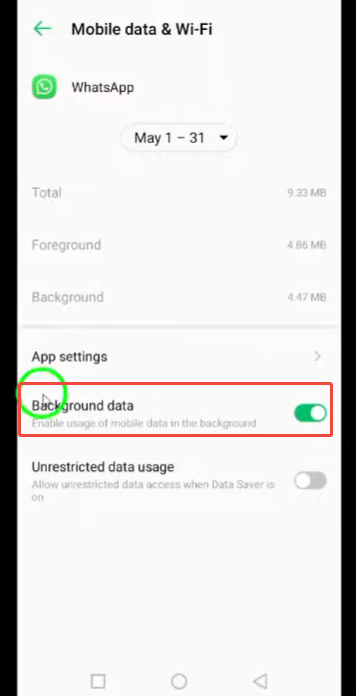
Battery optimization is one of the main reasons why MB WhatsApp stops running in the background. Most smartphones automatically limit the number of apps running in the background to save battery power. While this helps extend battery life, it may also cause MB WhatsApp to fail to receive messages or notifications until you reopen the app. To resolve this issue, you need to change the battery optimization settings in MB WhatsApp.
- On Android devices: Go to Settings > Battery > Battery Optimization. Here you will see a list of apps. Find MB WhatsApp and set it to “Unoptimized” or “Allow Background Activity”. This ensures that the application runs in the background without being paused.
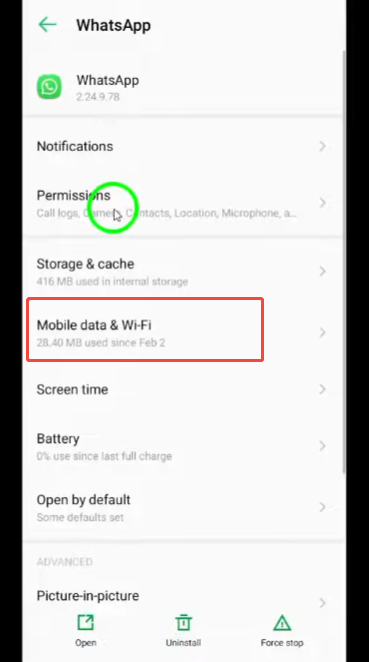
- On newer phones or specific brands: Some phones, such as those from Xiaomi, Huawei, or Samsung, have built-in additional power-saving or performance modes that automatically limit background apps. In this case, you may also need to go to Settings > Apps > WhatsApp > Battery and then select options such as Allow Background Activity or No Restriction.
- Tips for better results: When using the MB version of WhatsApp, please avoid enabling aggressive power-saving modes, as these modes may override your manual settings. If you find that messages are still delayed, please check if the “App Sleep” or “App Power Management” function is present and disable it in the MB version of WhatsApp.
By adjusting these settings, MB WhatsApp can continue to run in the background, ensuring you receive messages in real time and that your notifications are always up-to-date.
3. Enable Autostart
Automatic startup is an important feature that allows MB WhatsApp, one of the best WhatsApp mod 2026 options, to open automatically after the phone restarts. Without it, you’d need to manually launch the app every time you turn on your phone, which is very inconvenient if you rely on it for daily communication.
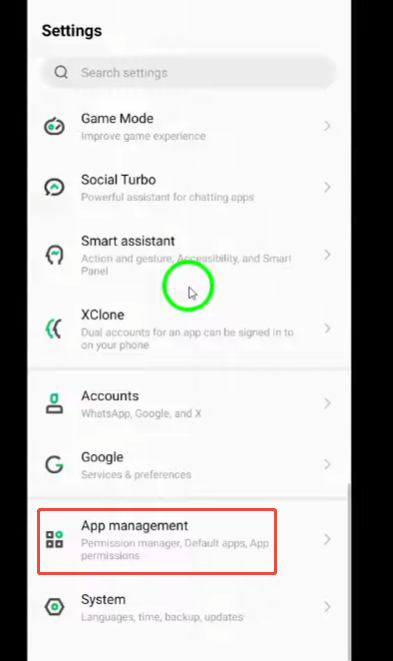
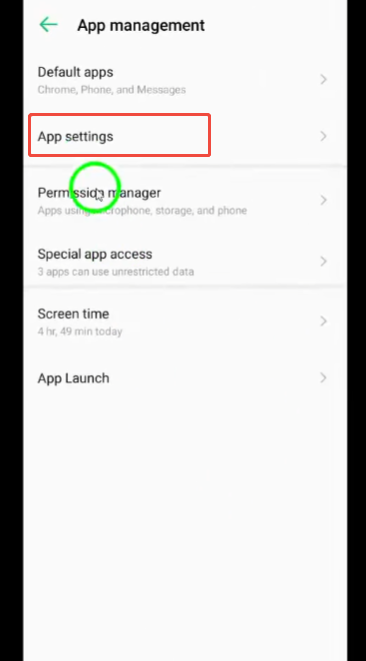
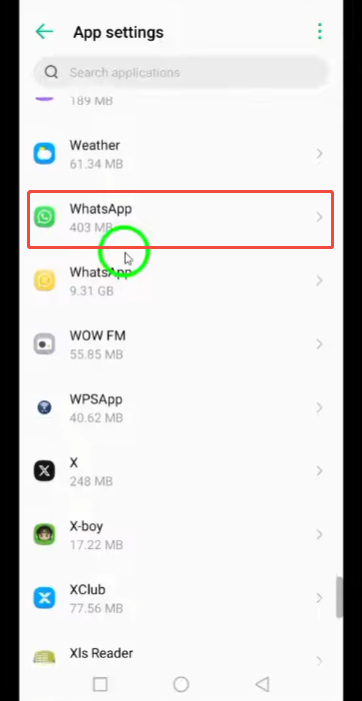
To enable automatic startup, go to Settings > Apps > MB WhatsApp > Automatic Startup and turn it on. This ensures the app launches immediately in the background after a restart, ready to receive messages.
Some phones also allow you to control the automatic launch of multiple apps simultaneously. If your device supports this feature, make sure to add MB WhatsApp to the list of apps allowed to auto-start. This step helps keep notifications flowing smoothly, ensuring the app stays running even if you forget to manually open it.
4. Lock MB WhatsApp in Recent Apps
Some phones automatically close apps when they are removed from the latest apps screen to save memory or battery. This can stop MB WhatsApp from running in the background and cause delays in receiving messages. Locking MB WhatsApp in recent apps helps prevent this.
To do this, first open MB WhatsApp and then go to the Recent Apps screen. This is usually accessed by tapping the square or the three-line button on your phone. Once you see MB WhatsApp in the list, look for a lock icon or a similar option. On some phones, you might need to long-press the app card to see the lock option. Tap it, and the app will stay in memory even if you clear other apps or switch between apps.
Locking MB WhatsApp also means that it will continue to run smoothly when you open other apps, play games, or watch videos. This is particularly useful if you like to multitask and still want to receive messages in real time. Keep in mind that keeping too many apps locked may use more memory, so it’s best to lock only the essential apps, like MB WhatsApp.
5. Check Notification Permissions
MB WhatsApp relies on notifications to remind you when you receive new messages. If notifications are not set up correctly, messages may only appear when you open the app, which defeats the purpose of having the app running in the background. To ensure everything runs smoothly:
- Allow all notifications: Go to Settings > Apps > MB WhatsApp > Notifications and make sure notifications are turned on. This way, the app can promptly notify you when there are new messages or incoming calls.
- Enable priority notifications: Some phones allow you to set notifications to “high priority,” so that even if the phone is in “Do Not Disturb” mode, notifications will still appear at the top of the screen and make a sound. Enabling this feature helps prevent you from missing important information.
- Check lock screen settings: Please ensure that MB WhatsApp notifications are allowed to appear on your lock screen. This way, even if your phone is locked, you can check new messages without opening the app.
- Test notification sounds: Sometimes your phone may display notifications silently. Please go to your MB WhatsApp notification settings and select sound alerts for received messages so you’ll know when someone contacts you.
- Avoid disabling app notifications for battery saving: Some power-saving modes may automatically limit notifications. Please ensure that MB WhatsApp is not subject to these restrictions so that you can receive messages immediately.
Some power-saving modes may automatically limit notifications. Please ensure that MB WhatsApp is not subject to these restrictions so that you can receive messages immediately.
6. Avoid Using Task Killers
Many users install task managers or memory cleaning apps in an attempt to improve their phone’s speed or save battery. While these apps may help improve overall performance, they typically close background apps, including memory-intensive apps like WhatsApp, which can interfere with features even in modified versions, such as MB WhatsApp 9.35 apk download. This can lead to delayed message delivery or complete cessation of notifications, thus defeating the purpose of keeping the application running.
Even some built-in phone cleaning or “phone speed-up” functions can cause the same problem. To avoid this situation, you can:
- Whitelist MB WhatsApp in the task killer or cleaner app, if the app allows it. This tells the phone to ignore MB WhatsApp when closing background apps.
- Avoid using aggressive cleaning apps that automatically close apps in the background.
- Check built-in phone settings like “Memory Optimization” or “Smart Cleaning,” and disable them for MB WhatsApp.
By doing this, you make sure MB WhatsApp keeps running smoothly, and you don’t miss messages, calls, or notifications while using other apps.
7. Advantages of Keeping MB WhatsApp Active
Keeping MB WhatsApp active in the background has several practical benefits that make using the app smoother and more convenient:
- Never miss messages: Keep the app running to receive messages instantly. No need to frequently open MB WhatsApp to check new chats. This is especially useful for group chats where messages are coming in quickly.
- Better experience with multimedia: Photos, videos, and voice messages load faster when the app is running. You can download media files instantly without waiting, which is very useful when a friend sends a large file or a long video.
- Reliable notifications: Notifications will appear on time even if your phone is locked or you are using other apps. You won’t risk losing important calls, messages, or status updates.
- Smooth multitasking: By keeping MB WhatsApp active, you can switch to other applications and continue using your phone normally without interrupting your chats or downloads.
- Improved performance for long conversations: If you are having a long or continuous chat, the background application ensures that your typing, reading, and sending messages remain smooth.
- Better group management: For users who manage multiple groups, background activity helps you stay informed about all group conversations without constantly opening the application.
By keeping MB WhatsApp running in the background, your messaging experience will become faster, more reliable, and more convenient, making the app easier to use in everyday life.


