
Many users want to switch from the official WhatsApp to MB WhatsApp because it offers additional features such as custom themes, scheduled messaging, and privacy settings. When considering the MB WhatsApp APK latest version, users often worry that they may lose important chat logs, photos, videos, and other media files during the transition. This guide will walk you step-by-step through how to restore your official WhatsApp backup to MB WhatsApp without losing any data, ensuring a smooth and safe migration.
1. Understand the difference between WhatsApp and MB WhatsApp
The official WhatsApp is the version developed and maintained by Meta. It focuses on basic messaging, voice calls, video calls, and media sharing features. Its main advantages lie in its reliability and frequent updates, thus ensuring the security of chat logs and backups. For users looking to switch to modified versions like MB WhatsApp, knowing how to restore WhatsApp backup to MB WhatsApp can be helpful to keep their previous chats intact. Most users are familiar with its interface and functions, making daily communication very convenient.
MB WhatsApp is a modified version of the official application. It includes some additional features not found in the standard version, such as custom themes, hiding online status, scheduled message sending, and more detailed privacy settings. These features are very useful for users who want to have more control over their chat experience.
Another important difference lies in how backups are handled. The official WhatsApp service saves data to cloud services such as Google Drive or iCloud, while also keeping a local backup on your phone. MB WhatsApp can use these backups, but sometimes you need to manually move the files from cloud storage to local storage for restoration. Understanding this distinction helps ensure a smooth transition and avoids losing messages or media files.
2. Prepare your phone for backup restoration
Before switching from official WhatsApp to MB WhatsApp, it’s important to prepare your phone carefully to avoid data loss. Here are the steps you should follow:
- Update your official WhatsApp: Please ensure you have installed the latest version of WhatsApp. Updates typically fix vulnerabilities and improve the reliability of backups. This ensures your backup is complete and compatible with MB WhatsApp.
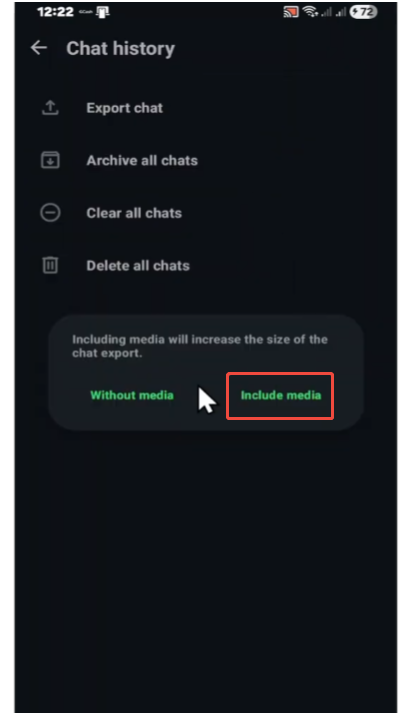
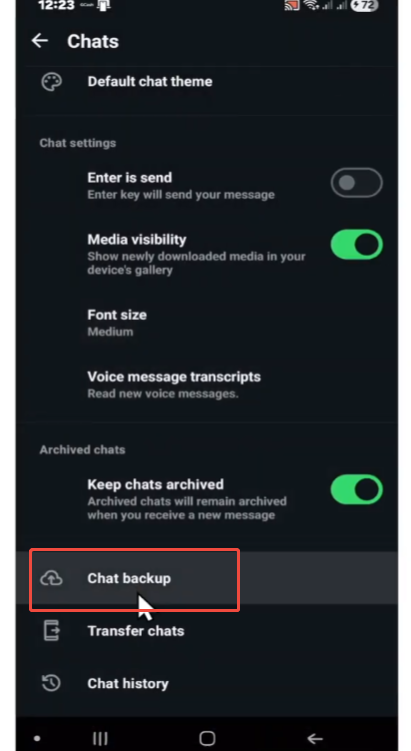
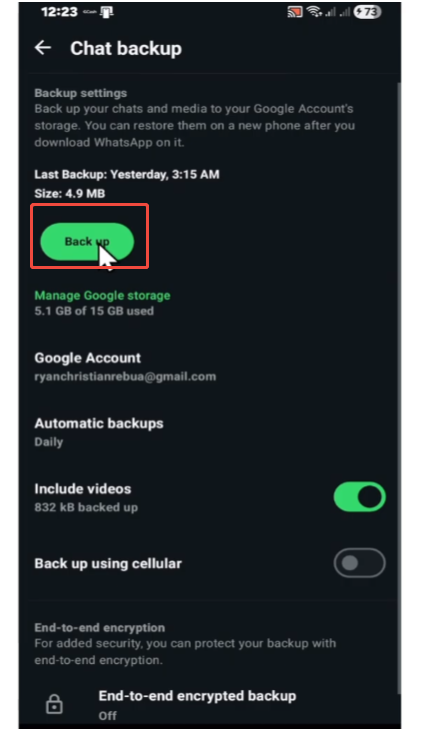
- Create a fresh backup: Even if WhatsApp automatically backs up, it’s best to manually create a new backup before switching.
- For Android: Go to Settings → Chats → Chat Backup → Back Up. You can choose to include videos if you want to save all media.
- For iPhone: Go to Settings → Chats → Chat Backup → Back Up Now. Make sure your iCloud account has enough space for the backup.
- Check available phone storage: MB WhatsApp requires a certain amount of space to install the app and restore backups. Please ensure your phone has sufficient available storage space to avoid errors during the restore process.
- Verify the backup location:
- On Android, local backups are usually stored in the WhatsApp/Databases. You may want to check that the latest backup file is there.
- For cloud backups, ensure the account you used is active and accessible.
- Keep your phone charged: Restoring a backup, especially one containing media files, may take some time and battery power. It is best to fully charge the phone or connect it to a charger during the recovery process.
Taking these steps ensures your backup is complete and that you can restore to MB WhatsApp at any time without losing any chat history, photos, or videos. Proper preparation can prevent common errors such as lost messages or failed recovery.
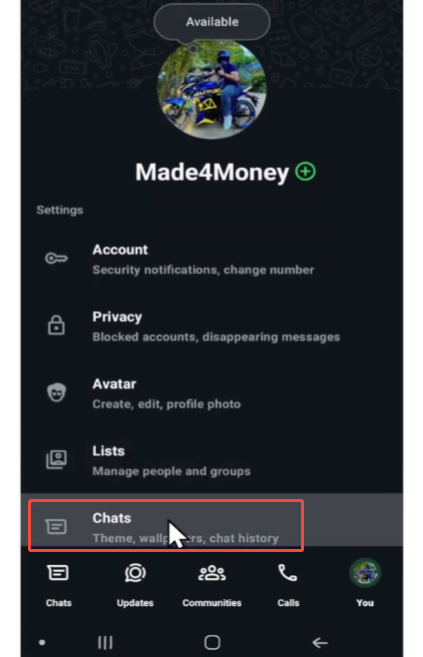
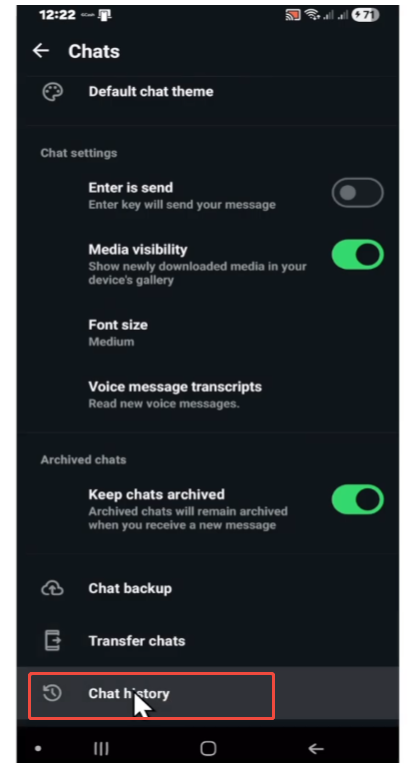
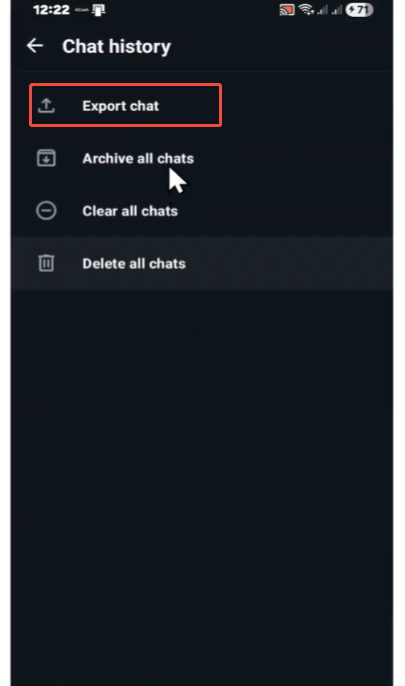
3. Install MB WhatsApp safely
Installing MB WhatsApp requires some extra care compared to the official app because it is a modified version. To do it safely, follow these steps:
- Download from a trusted source
Make sure to use the website or link that provides the latest and most secure version of MB WhatsApp. Avoid using random links from social media or unknown websites, as these links may contain harmful files or malware. - Enable installation from unknown sources
Since MB WhatsApp is not from the Google Play Store, your phone will block the installation by default. To allow it:
- On Android, go to Settings → Security → Install unknown apps and give permission to your browser or file manager.
- Remember to turn this setting off again after installation to keep your phone secure.
- Check storage and phone performance
Please ensure your phone has enough storage space. WhatsApp, along with the restored backup files, can take up hundreds of megabytes. In addition, please close other applications to avoid slowing down your phone during the installation process. - Install the APK carefully
Open the downloaded file and follow the instructions. Do not cancel any steps during the installation process. After installation, open MB WhatsApp and verify your phone number. - Verify your phone number
Please use the same number you use on the official WhatsApp account. This is crucial because your backup is associated with that number. MB WhatsApp will detect the backup during the verification process and prompt you to restore it. - Double-check the version
After installation, please check the version number in your MB WhatsApp settings to ensure you are using the latest version. Updates typically fix bugs and improve backup compatibility.
- Check storage and phone performance
By following these steps, you reduce the risk of installation errors and make sure your MB WhatsApp is ready to restore your chats safely.
4. Restore your backup from official WhatsApp
After installing MB WhatsApp on your device, the first step is to verify your phone number. Please ensure you use the number associated with your official WhatsApp account, as this is crucial for locating your previous backup files. Following verification, which typically involves receiving a code via SMS and entering it in MB WhatsApp, you can refer to the MB WhatsApp backup guide to smoothly restore your chats and media without losing any data.
Once verification is complete, MB WhatsApp will search for local backup files on your phone. If you previously created a local backup using the official WhatsApp, it should appear automatically. When prompted, click “Restore” to begin importing all chat history, photos, videos, and voice messages. This process may take several minutes, depending on the size of the backup file.
If your backup is stored in the cloud (such as Google Drive), you may need to download the backup file or move it to your phone’s local storage. MB WhatsApp does not always have direct access to cloud backups, so saving files locally can ensure a smooth recovery.
During the recovery process, please avoid closing the application or switching to other resource-intensive applications. Interrupted operation may result in recovery failure or incomplete data. After the recovery is complete, please check your chat history and media files to ensure that all content has been successfully imported.
5. Verify your data
After restoring your backup in MB WhatsApp, be sure to carefully check that all data has been restored correctly. Open several chat logs to ensure the messages are displayed in the correct order and that no conversations are missing. Please also pay attention to earlier chat logs, as they may not load immediately if the backup file is large.
Examine all types of media files. Open photos, videos, voice messages, and documents that you sent or received in the official WhatsApp app. Make sure they can play properly and are not damaged. For group chats, please ensure that all messages, photos, and shared files are intact, as group chat data recovery can sometimes take longer.
In addition, some important features need to be tested, such as starred messages, archived chat history, and chat settings. If you find any missing or incorrect information, you can try closing MB WhatsApp and reopening it, as the application may still be indexing the recovered data. In rare cases, if certain media files or messages fail to display, you may need to re-import the backup.
Taking the time to thoroughly verify your data ensures a smooth transition from the official WhatsApp to MB WhatsApp and avoids any unpleasant surprises later on. By carefully preparing before the MB WhatsApp 2026 download, you can start using the app with peace of mind, knowing that all chat logs and media files are safe and secure. This step is crucial for a seamless experience and protects your important conversations throughout the switch.
6. Backup in MB WhatsApp
Once all data is restored:
- Go to MB WhatsApp Settings → Chats → Chat Backup.
- Make a new backup in MB WhatsApp. This will save all data in MB WhatsApp’s system so you can restore it later if needed.
This step is important because now your backup is managed entirely by MB WhatsApp, which ensures safety for future updates or reinstallations.
7. Additional tips
- Do not switch phones during restoration– Replacing your phone before the recovery is complete may result in corrupted backups or loss of some data. Please make sure to complete the restore on the same device.
- Keep both WhatsApp versions temporarily– After restoring your data, please keep the official WhatsApp version for a few days. This ensures that you can compare chat history and media files to confirm that no data has been lost before you fully switch to MB WhatsApp.
- Check storage space regularly– Restoring backups and receiving media files will take up a lot of space. Please ensure your phone has sufficient storage space to avoid recovery failure or file loss.
- Avoid using multiple accounts at once– Using two WhatsApp accounts on the same phone can sometimes cause MB WhatsApp to malfunction and lead to backup errors. When restoring data, please use only one account.
- Regular backups are essential– Even after switching to MB WhatsApp, keep making frequent backups. Unexpected crashes, updates, or device issues can happen, and having a backup ensures your chats and media remain safe.
- Organize your media files– The way WhatsApp stores media files may be slightly different for the MB version. After recovery, please check your photos, videos, and voice memos. Organizing them into folders or albums will help you quickly find important files and keep your phone’s storage space tidy.
- Test key chats– After recovery, open the most important chat history and send a test message. This confirms that everything is working properly and avoids unexpected situations in the future.
Conclusion
If you carefully follow these steps, you can restore your official WhatsApp backup to MB WhatsApp without losing any data. Please be sure to create a new backup, securely install MB WhatsApp, and perform the restore process correctly. After restoring, please be sure to check that the chat history and media files are complete, and create a new backup in MB WhatsApp. By following these steps, you can enjoy all the additional features of MB WhatsApp while ensuring your data security.


