
Nowadays, managing multiple whatsapp accounts has become a basic need for countless users around the world. Many people separate personal chats from work communications, run business customer service accounts, or maintain dedicated accounts for family and social groups. However, the official WhatsApp app offers very limited support for multi whatsapp usage, especially for iPhone users who struggle to set up extra whatsapp accounts on their devices.
There are two popular ways to use multiple whatsapp accounts on a single device. Some users prefer to keep the original official WhatsApp alongside MB WhatsApp. If this is your need, you can check our previous guide: How to Safely Run MB WhatsApp and the Official App on the Same Phone. In this article, we will focus on another practical solution: logging into and managing multiple independent whatsapp accounts directly inside MB WhatsApp.
If you are looking for a stable and feature-rich way to run several WhatsApp profiles on one phone, MB WhatsApp stands out as a top choice. This comprehensive guide will walk you through how to set up and manage multiple whatsapp accounts on both Android and iOS, and share detailed operations for multi whatsapp in iphone, along with practical tips to keep all your whatsapp accounts running smoothly.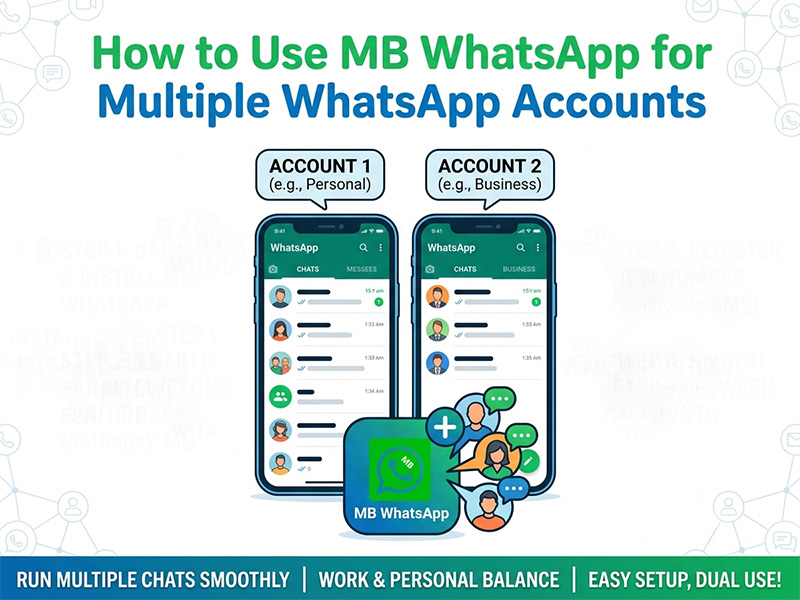
Why Do You Need Multiple WhatsApp Accounts
There are many practical scenarios for using separate whatsapp accounts in daily life and work.
- Keep work conversations, client chats and business files fully separated from private messages to avoid content mix-ups.
- Manage different customer groups efficiently if you run a small business or provide online services.
- Protect personal privacy when chatting with strangers or temporary contacts by using an independent spare whatsapp account.
Unfortunately, the official WhatsApp cannot fully meet these demands. Its built-in multi-account function only allows basic account switching, lacks independent settings for each profile, and the overall experience is far from smooth. Worse, multi whatsapp in iphone is extremely tricky with the official app, as Apple’s strict system restrictions block most simple multi-account solutions. This is why more and more users turn to MB WhatsApp to run multiple whatsapp accounts easily.
Limitations of Official WhatsApp for Multi-Account Usage
Before getting started with MB WhatsApp, let’s take a look at the main drawbacks of the official app when handling multiple whatsapp accounts.
1. On Android Devices
- It only supports adding one secondary account, with overly simplified functions.
- You cannot set exclusive themes, privacy rules or notification styles for different whatsapp accounts.
- Account switching takes extra time, and some advanced features are restricted for secondary profiles.
2. On iPhone Devices
- The official WhatsApp does not support running two or more whatsapp accounts at the same time.
- You have to log out of one account and log into another repeatedly, which interrupts real-time message delivery.
- There is no official native solution to realize true multi whatsapp in iphone.
These limitations make official WhatsApp unsuitable for users who rely heavily on multiple whatsapp accounts. MB WhatsApp fixes all these pain points with optimized multi-account support, bringing a seamless multi whatsapp experience to both Android and iPhone devices.
Key Advantages of MB WhatsApp for Multiple WhatsApp Accounts
MB WhatsApp is fully optimized for multiple whatsapp accounts, and it has many unique strengths compared to standard WhatsApp and other similar mods.
- Support two or more independent whatsapp accounts on a single device. All data, including chat history, media files and configurations, is completely isolated between accounts.
- Customize exclusive privacy options, notification tones, fonts and chat layouts for every account based on your preferences.
- Enjoy ultra-fast account switching. You can jump between different whatsapp accounts with just a few taps, no repeated logout or verification required.
- All exclusive advanced features of MB WhatsApp work normally on every account, such as anti-revoke messages, fingerprint chat lock and custom iOS fonts.
- Provide a reliable solution for multi whatsapp in iphone, breaking the strict restrictions of Apple’s system.
- Equipped with built-in anti-ban protection to lower account risks when running multiple accounts simultaneously.
Step-by-Step Guide: Set Up Multiple WhatsApp Accounts on MB WhatsApp
The operation differs between Android and iOS. Below are detailed tutorials to help you set up multi whatsapp and manage all your whatsapp accounts properly.
Part 1: Run Multiple WhatsApp Accounts on Android
Android has more open system permissions, so setting up multiple whatsapp accounts on MB WhatsApp is simple and straightforward.
- Back up chat data of all your existing WhatsApp accounts to prevent data loss. Download the latest MB WhatsApp APK from our official website.
- Go to your Android system settings and enable the Install Unknown Apps permission.
- Install the downloaded MB WhatsApp, launch the app, enter your first phone number and complete SMS or call verification. Restore chat backups and finish basic profile settings.
- Tap the three vertical dots menu icon on the top right, select Accounts, then choose Add New Account.
- Input your second phone number and complete verification. Repeat this step if you need to add more whatsapp accounts.
- To switch accounts: Open the menu and enter the Accounts page, then select the target account for instant switching.
- Adjust notifications, privacy rules and media settings separately for each account. All configurations only take effect on the current account.
Part 2: Multi WhatsApp in iPhone
Due to Apple’s strict security rules, multi whatsapp in iphone needs dedicated tools for installation. Follow these steps to set up multiple whatsapp accounts on your iPhone.
- Prepare a Windows or Mac computer, and connect your iPhone to the computer via a data cable. Download and install AltStore on your computer.
- Open Safari on your iPhone and visit our official download page to get the latest MB WhatsApp IPA file.
- Launch AltStore on your computer, select your connected iPhone, and import the IPA file to start installation.
- After installation, go to Settings > General > Device Management on your iPhone, then trust the developer certificate to activate MB WhatsApp.
- Open MB WhatsApp and log in with your first phone number. Complete initial setup.
- Tap the top menu and select Add New Account to add more whatsapp accounts.
- Switch and manage accounts the same way as on Android. Each account runs independently with separate settings.
Useful Tips to Manage Multiple WhatsApp Accounts Smoothly
Follow these practical tips to keep all your whatsapp accounts running stably and improve your overall experience with multi whatsapp.
- Distinguish accounts clearly: Set different profile pictures, notification sounds and icon styles to tell work accounts apart from personal ones at a glance.
- Enable anti-ban protection: Turn on Stealth Mode and Ban Alerts in MB Settings to reduce detection risks when using multiple accounts.
- Create regular backups: Manually back up chat data for each whatsapp account every week for emergency recovery.
- Update the app timely: Always use the latest version of MB WhatsApp. New updates optimize multi-account logic and fix compatibility bugs.
- Classify chats reasonably: Use archive and list functions to organize chats for each account and keep the interface tidy.
Troubleshooting Common Multi-Account Issues
If you run into problems while using multiple whatsapp accounts, refer to the solutions below.
- Failed to switch between accounts
This is usually caused by an outdated app version. Download and reinstall the latest MB WhatsApp. You can also clear the app cache and restart the device to fix temporary glitches.
- Messages or media not loading on secondary accounts
First check your network connection. Then confirm MB WhatsApp has obtained all required system permissions, including storage and notification access. Restart the account to refresh data synchronization.
- Installation failure for multi whatsapp in iphone
Reconnect your iPhone to the computer and re-trust the developer certificate. Make sure AltStore works normally. Re-download the IPA file if the original file is corrupted.
- Account conflict warning
Do not log in the same phone number across different accounts. Every whatsapp account must use an independent phone number to avoid conflicts and ban risks.
Final Thoughts
Running multiple whatsapp accounts is no longer a difficult task with MB WhatsApp. Whether you are using an Android phone or an iPhone, this app delivers a reliable multi whatsapp experience. For iOS users who have long been troubled by system restrictions, the mature solution for multi whatsapp in iphone breaks the limitations of the official WhatsApp.
With isolated data, fast account switching and full access to exclusive advanced features, MB WhatsApp is an ideal choice for anyone who needs to manage several whatsapp accounts for personal, work or business use. Follow the steps in this guide to set up your multi-account environment, and enjoy a more flexible and convenient messaging experience in 2026.


