
MB WhatsApp is a popular modified version of WhatsApp that offers more features than the official app, and many users prefer downloading the MB WhatsApp APK to access these extras. However, users sometimes encounter an annoying “App not installed” error when trying to update MB WhatsApp, which can be frustrating, especially when you want to experience the latest features. This issue often arises due to storage problems, incompatible versions, or security settings on your device, but by following some simple troubleshooting steps, such as clearing cache, enabling unknown sources, or reinstalling the APK, you can usually resolve the problem and enjoy the app’s full functionality.
1. Common Reasons for “App Not Installed” Errors
When you try to update MB WhatsApp and see the “App Not Installed” error, it usually happens for a few common reasons. To resolve this quickly, you might want to ensure that you have enough storage, that your device allows installations from unknown sources, and that your current version isn’t conflicting with the new one. For users looking to get the MB WhatsApp download latest version, following these steps carefully can prevent installation errors and make the update process smoother.
Conflict with the old version: If an older version of MB WhatsApp is still installed, it can prevent the new update from installing properly. The system may not allow the new version to replace the old one if they share the same package name or if some files are locked.
Insufficient storage: Your device needs enough free space to install the update. Even if there seems to be enough space, temporary files or cached data can reduce available memory, causing installation to fail.
Disabled unknown sources: MB WhatsApp is a third-party application, not from the official app store. If your phone blocks the installation of apps from unknown sources, you will not be able to update.
Corrupted APK file: If the APK file you downloaded is incomplete or corrupted, the installation will fail. Sometimes, slow download speeds or download interruptions can also cause this problem.
Different package name: Some updated versions of MB WhatsApp will use a new package name. In this situation, the system will recognize it as a different application and will not overwrite the previous version, resulting in an installation error.
Software compatibility issues: Older versions of Android or certain device models may not support the latest WhatsApp MB update. If the app requires features that your phone does not have, it may not be able to install.
These are all possible reasons for the “App not installed” error. Understanding these reasons will help you decide on the correct steps to resolve the problem.
2. Step-by-Step Solutions
a. Clear Old Version or Uninstall Conflicting Apps
If you have MB WhatsApp installed, you may need to uninstall it first. Before doing so, it’s important to know how to back up MB WhatsApp chats to prevent losing any messages. Once your chat history is safely backed up, you can proceed to uninstall the old version and then try installing the new APK file without worrying about data loss.
b. Check Your Storage
Please ensure your device has sufficient available storage space. Even a few hundred megabytes can be effective. If your phone’s storage is almost full, please delete unnecessary files or apps.
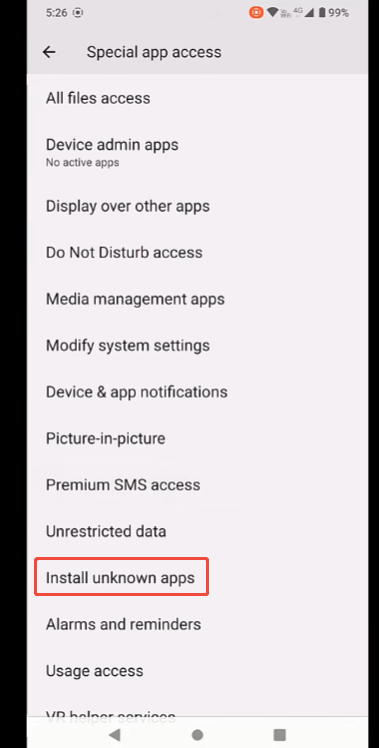
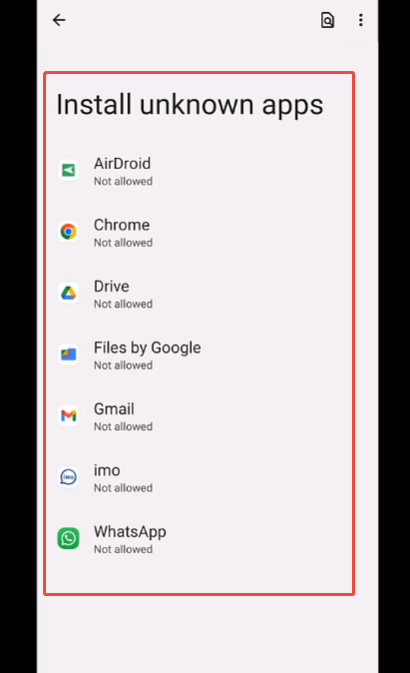
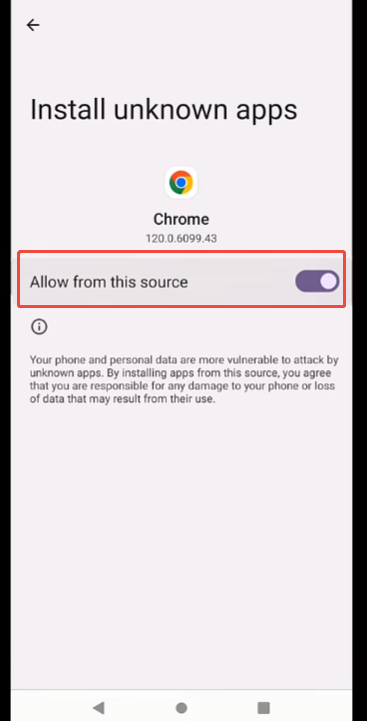
c. Enable Unknown Sources
Since MB WhatsApp is a third-party application, your phone may block its installation. Here’s how:
- Go to Settings > Security.
- Find Install unknown apps or Unknown sources.
- Allow your browser or file manager to install apps.
d. Download a Fresh APK
Sometimes the APK file you download may be corrupted. Please download the latest version of the MB WhatsApp APK from a trusted source. Make sure the download is complete before trying again.
e. Match the Package Name
Some updated versions have different package names than older versions, and if the app cannot automatically overwrite the old version, you may need to uninstall the old MB WhatsApp and then reinstall the new APK file to enjoy MB WhatsApp new features 2026.
f. Restart Your Phone
After trying the above steps, please restart your device. This can eliminate temporary problems and make the installation process smoother.
3. Extra Tips
- Always back up your chats: Before updating MB WhatsApp, please be sure to back up your messages and media files. You can use the app’s built-in backup feature, or you can manually copy the WhatsApp folder to your phone’s storage or the cloud. This ensures that you won’t lose important chat logs if problems occur during the update process.
- Use trusted sources for APK downloads: Download WhatsApp MB updates only from reputable and reliable websites. APK files from unknown websites may be incomplete, corrupted, or even contain malware. If you are unsure about the source, please check user comments or forums.
- Check device compatibility: Not all MB versions of WhatsApp are compatible with all Android phones. Please ensure that your Android phone version meets the minimum requirements for the new version update. Older devices may experience installation errors or application crashes.
- Free up memory and close background apps: Sometimes installing new versions of apps may fail if your phone’s memory or storage space is insufficient. Please close background applications and clear temporary files to ensure a smooth installation.
- Keep your system updated: Please ensure your phone’s operating system is updated. Even minor system updates can improve compatibility with apps like MB WhatsApp and reduce errors during the installation process.
- Restart your phone after installation: After the update, please restart your device to ensure all application files load correctly. This helps prevent crashes or glitches when a new version is launched for the first time.
- Consider installing a separate clone: Some MB versions of WhatsApp allow you to install the app as a standalone clone with a different package name. This way, you can safely test new versions while keeping older versions.
By following these extra tips, you can reduce the chances of making mistakes and enjoy the latest MB WhatsApp features without any interruptions.
4. Preventing Future Installation Issues
To avoid seeing the “App Not Installed” error in the future, there are a few simple steps you can follow:
- Keep backups regularly: Even if the application updates normally, backups will ensure the safety of your chat history and media files.
- Use trusted sources: To avoid downloading corrupt or unsafe APK files, please only download MB WhatsApp updates from reliable websites.
- Clear cache occasionally: Temporary files can sometimes cause conflicts during the installation process. Clearing your file manager or browser cache can solve this problem.
- Check storage space often: Make sure your phone has enough space before downloading or updating apps.
- Keep Android updated: Some MB versions of WhatsApp may not work properly on older Android systems. Updating the operating system can reduce installation problems.
By following these steps, you can minimize the chances of installation errors and enjoy a smooth MB WhatsApp update every time.


